

animATEM is an ATEM switcher control app that shows you a layout before you commit it. Alongside ordinary cut/auto/FTB switching, it captures the switcher’s own multiview over USB, crops the source boxes out of that live feed, and recomposites them into your SuperSource or DVE arrangement — so you are dragging real pixels around, not guessing at coordinates.
Before you rely on this: everything here is built and exercised — typecheck, lint and tests pass, the control server round-trips real commands, the packaged app boots — but none of it has touched a real switcher. The UVC capture path has only been tried against a generic webcam, never a real ATEM multiview. Read What isn’t proven yet before you put this anywhere near an audience.
This is an AI-assisted codebase, human-directed and reviewed. Review it before relying on it.
What isn’t proven yet
Two things to hold in your head, because they pull in opposite directions:
- The Preview panes’ scale is a labelled placeholder. The numbers ATEM uses for SuperSource and DVE box position and size are raw wire values, and their real-world scale isn’t documented anywhere reachable without hardware. animATEM guesses. A box may be drawn at the wrong size or position relative to what the switcher will actually do.
- What gets pushed is not affected by that guess. Take sends the exact raw values you set, untouched. A wrong preview scale makes the picture wrong, not the command.
So treat the preview as an indication, not a proof, until you have calibrated against real output. Do not put this in front of an audience on its first outing.
What you need
- An ATEM Mini Pro or Extreme ISO (the Phase 1 family).
- The switcher’s USB output set to Multiview, not the default Program. The compositing workflow reads the multiview feed — with USB set to Program you get one picture and none of the source boxes, and nothing will work as intended.
- A network route to the switcher for control, and the USB cable for capture.
The two halves
It is worth keeping these separate in your head, because only one of them is unusual.
Standard switching — cut, auto, fade-to-black, program/preview selection, aux routing. Plain ATEM control over the network, and it behaves the way any other ATEM controller would.
SuperSource and DVE layout compositing — the distinctive part. Rather than sending a layout command and hoping, animATEM captures the switcher’s own multiview output over USB (it enumerates as a UVC webcam), crops the individual source boxes out of that live feed, and recomposites them into your arrangement with real live pixels. You then Take it to push it to the switcher, or Animate it — see Animating a SuperSource move.
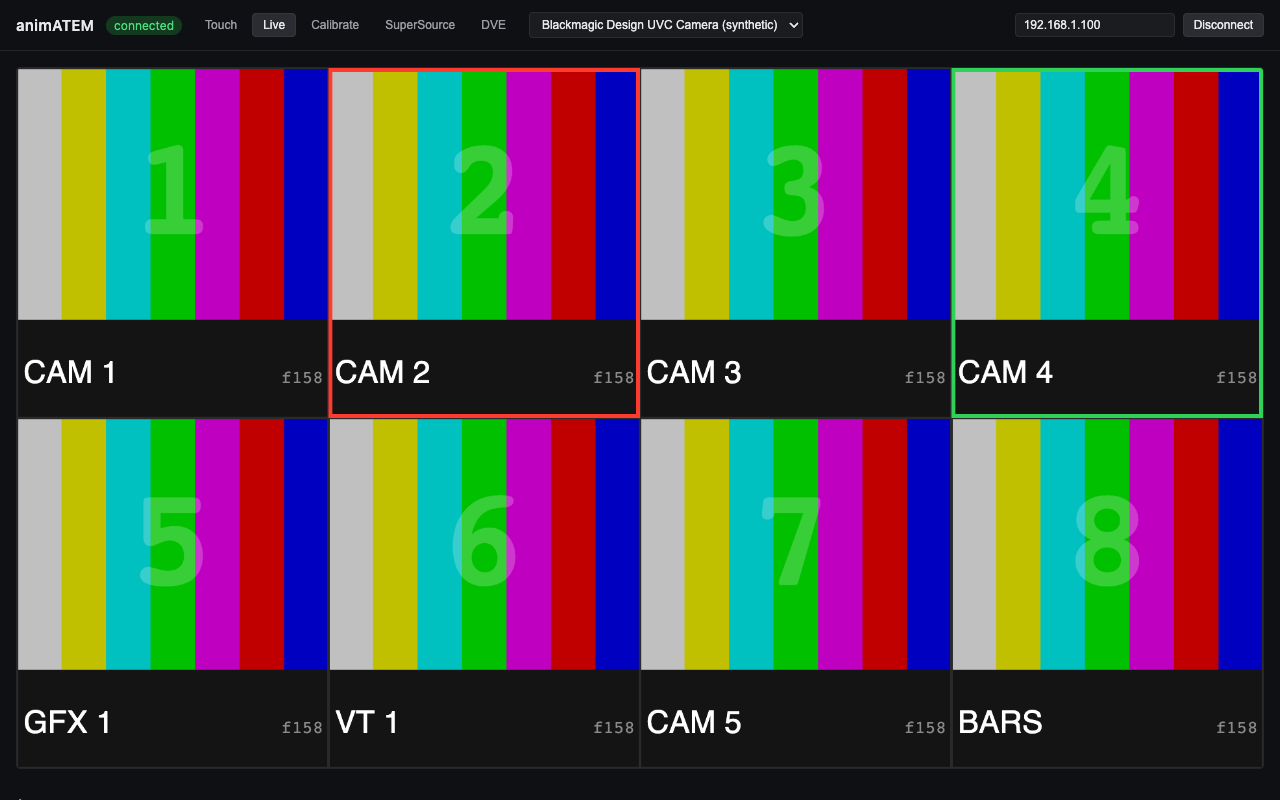
The Live tab. Every screenshot in this guide is the app’s own synthetic test feed, not a real ATEM — the source selector reads “Blackmagic Design UVC Camera (synthetic)” in all of them.
Calibrate first
The capture path needs aligning to the actual video before the composite means anything. On the Calibrate tab you draw a rectangle around each multiview box — or press Auto-create boxes for a starting grid — nudge the corners into place, and tell the app which live source each box is showing.
Match by what you can actually see in the box, not by a guessed number. Connect to the ATEM first, so there is something to match against.
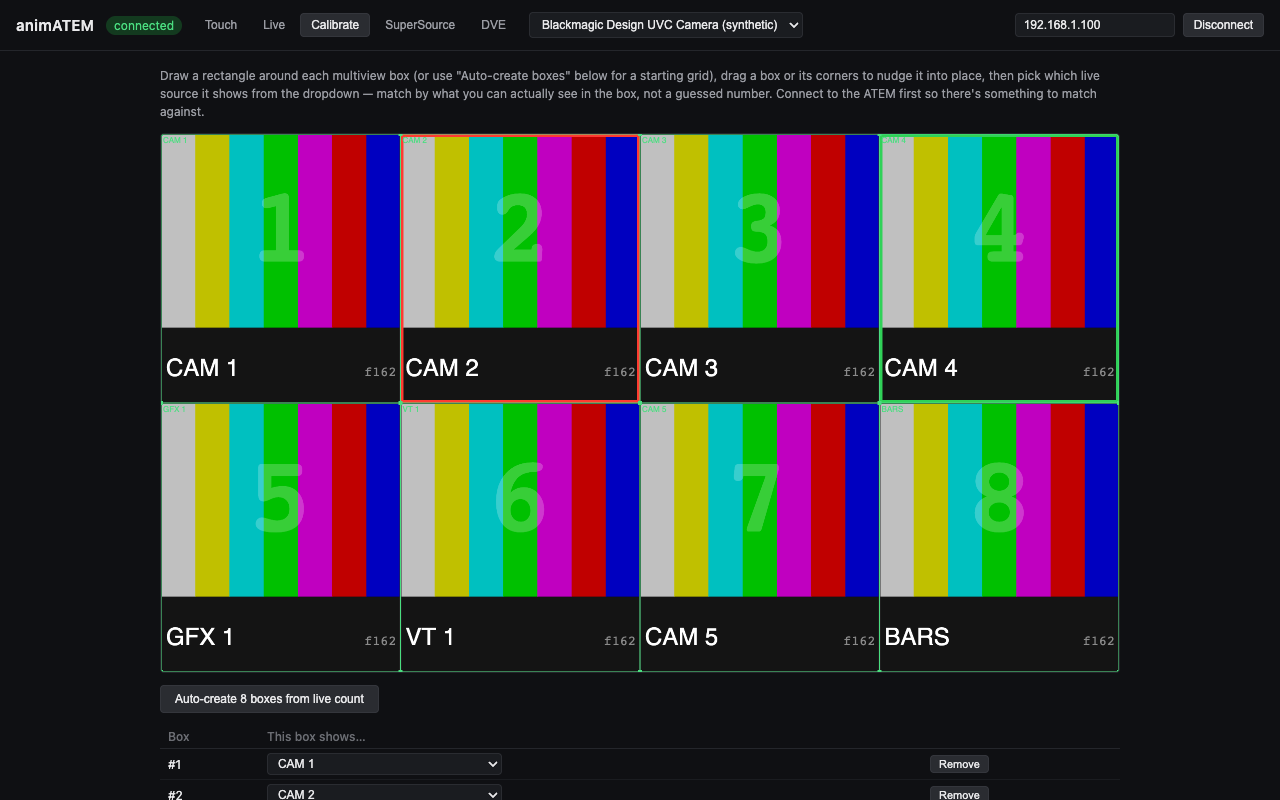
Two things about calibration that will bite otherwise:
- A profile is stored per resolution. Change the multiview resolution and you need to calibrate again. The app won’t reuse the old profile, and it won’t warn you that you are running uncalibrated.
- An uncalibrated composite looks plausible and is wrong, which is the worst failure mode available. Don’t assume it is pixel-true until you have done this.
Preview, Take and what’s editable
The editor works Preview → Take, like the switcher itself. The left pane is what is live; the right pane is what you are building.
- Drag a box to move it, drag a corner to resize.
- SuperSource boxes scale uniformly — one size value, so they stay square-proportioned.
- DVE boxes have independent width and height.
- Crops (SuperSource) and masks (DVE) are separate settings, and are only applied when their enable flag is on.
- Take pushes the layout to the switcher.
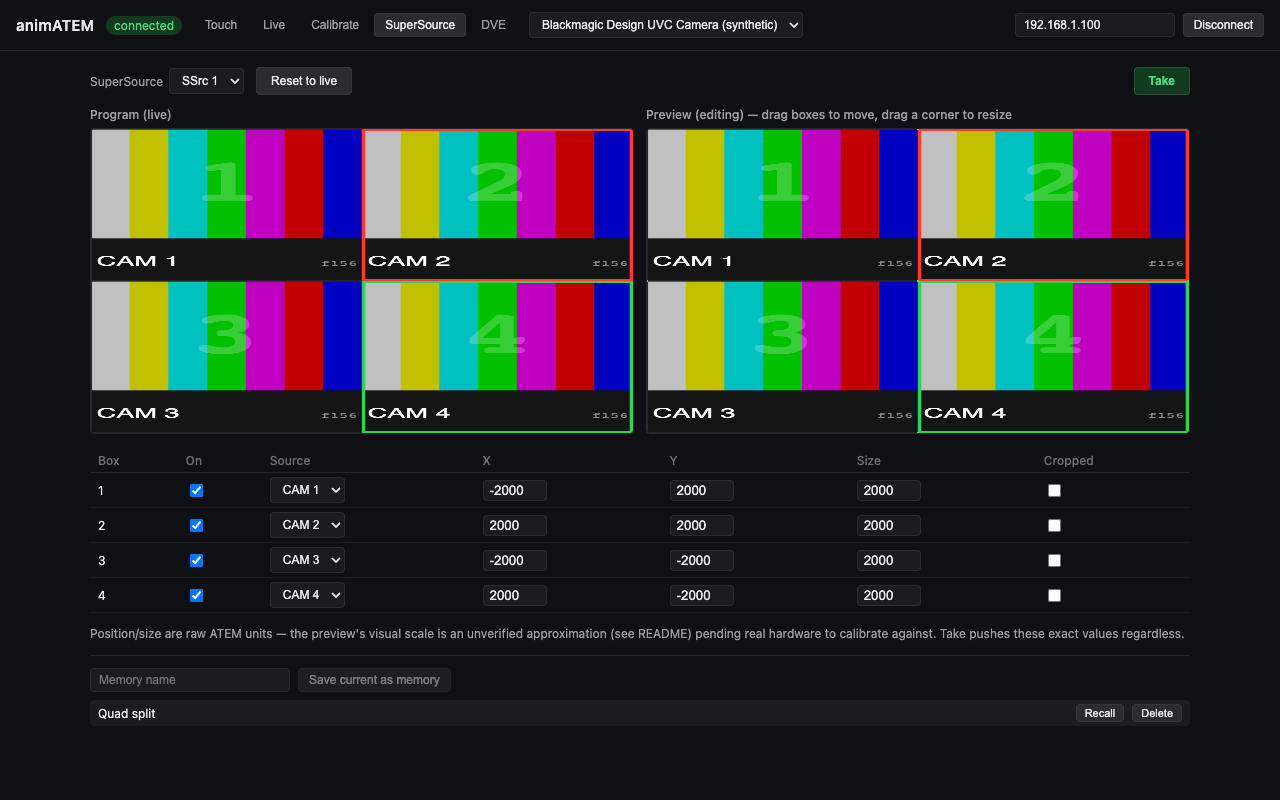
The X/Y/Size fields under the panes are the raw ATEM units being sent. They are the values Take pushes verbatim, which is why they are exposed rather than hidden behind the drag handles.
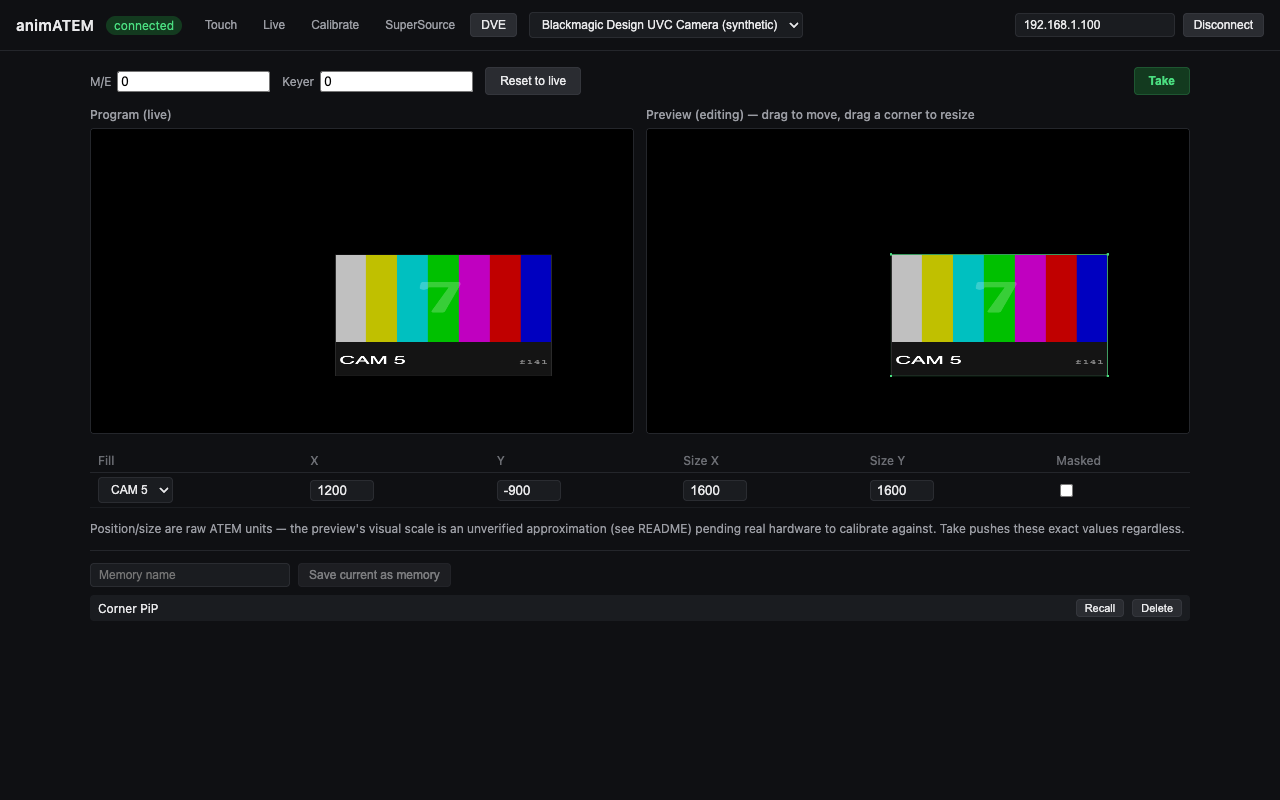
Animating a SuperSource move
The ATEM protocol has no native SuperSource tweening. An upstream keyer’s DVE is animated by the switcher itself, in hardware, via fly-keyframes — SuperSource simply isn’t.
So animATEM does it client-side: pick a duration and press Animate instead of Take, and it eases into the target layout by streaming a fixed cadence of interpolated positions to the switcher.
Two things follow from that, and both matter on a show:
- It is at the mercy of the network and the app. A hardware DVE fly is one command the switcher executes on its own; a SuperSource animation is a continuous stream from your laptop. A network hiccup, a busy machine, or the app being backgrounded all show up in the move.
- There is no DVE equivalent of Animate, because there doesn’t need to be — the switcher already does that one properly, in hardware.
Memories
Named presets that capture a SuperSource or DVE arrangement. They are animATEM’s own, stored in a JSON file in the app’s data directory, and entirely independent of the ATEM’s own macro system. They don’t appear on the switcher, and they won’t survive a move to a different machine unless you copy the file.
- Recall from the app’s own UI loads the memory into an editable Preview. Nothing goes to air until you Take.
- Recall from a Stream Deck / Companion button goes straight to air — see Stream Deck and Companion.
- Saving a memory with an existing name or id replaces it.
- If the memories file is unreadable or corrupted, the app shows an empty list rather than an error. “All my memories vanished” usually means a damaged file, not a deletion.
Back the file up before a show if the memories matter.
The touch layout
A separate operator view sized for a touchscreen: tap a source to send it to preview or program, with Cut, Auto, FTB and a kiosk toggle on a bottom bar.
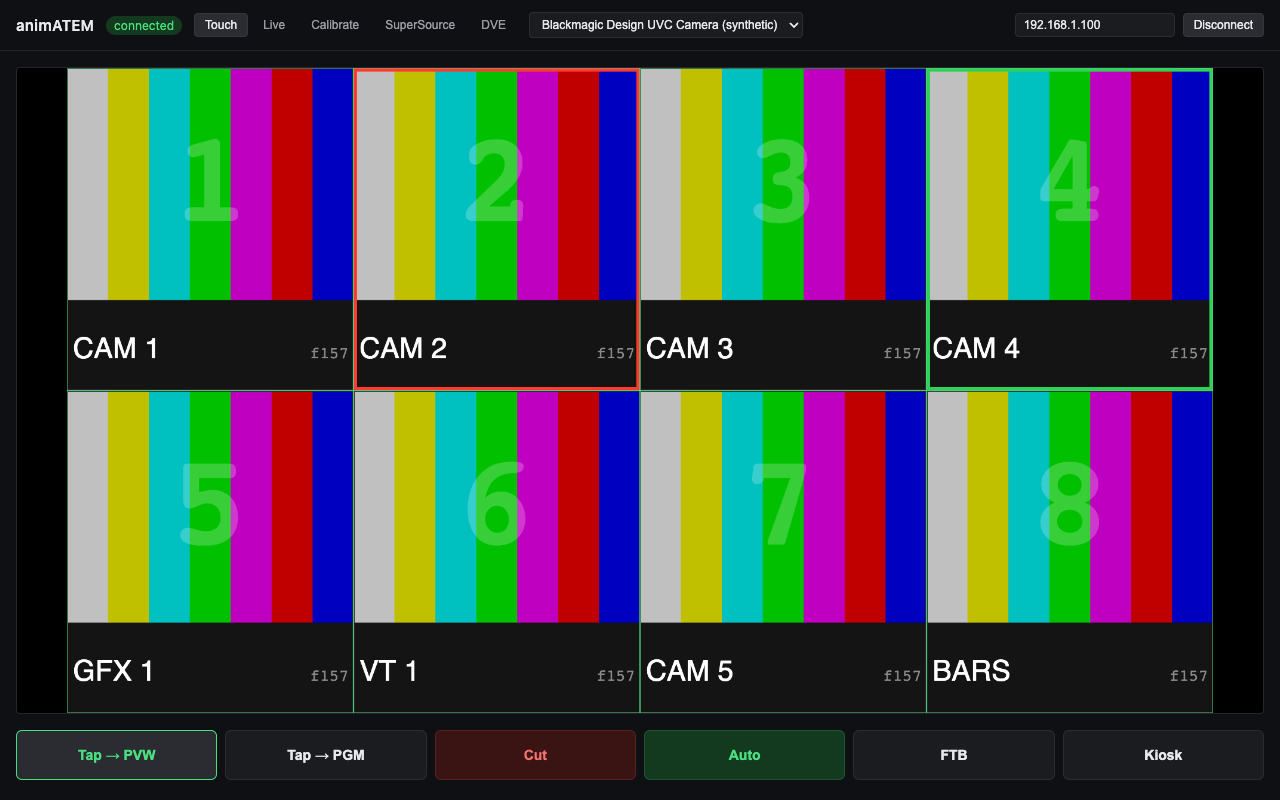
Tap → PVW and Tap → PGM decide what a tap on a source does. Leaving it on Tap → PGM means every tap is a live cut, which is the point on a fast show and a hazard on a slow one.
Stream Deck and Companion
A Bitfocus Companion module ships in
companion-module/. Buttons can trigger Cut, Auto, FTB, source
selection, memory recall and animated SuperSource recall, with feedback and variables for the
current program and preview input.
A Companion memory-recall button goes straight to air. This is deliberate — a physical button press is treated as a physical action, the way a memory bank works on real switcher hardware — but it is the opposite of what the same recall does in the app’s own UI, which loads into an editable Preview. Label those buttons so nobody expects a preview.
Other behaviours worth knowing before you build a page of buttons:
- Commands are never acknowledged. The module learns whether something worked by watching the next state update, not from a reply. A command sent to a disconnected switcher looks exactly like one that worked.
- An unknown memory id does nothing, silently.
- Asking to animate a DVE memory does nothing, silently — animation is SuperSource-only.
- The memory list is pushed on connect and when the app broadcasts it, so a surface can hold a stale list if memories change underneath it.
Security
The control server binds to 127.0.0.1:51234 with no authentication. Anything that can reach
that port on the local machine can cut, auto, FTB or recall a memory — that is, put something
on air.
That is acceptable only because it is localhost-only, which is the default and the only supported configuration. Do not expose it to the network. It has no authentication to add safety if you do.
Troubleshooting
| Symptom | Cause |
|---|---|
| No source boxes in the capture, just one picture | The switcher’s USB output is set to Program. It must be Multiview. |
| Composite is offset or the wrong scale | Not calibrated, or calibrated at a different resolution — profiles are per-resolution. |
| Preview doesn’t match what the switcher did | Expected for now. The preview coordinate scale is an unverified placeholder; the push is exact. |
| A SuperSource animation stutters | It is streamed from this machine, not run in the switcher. Network or CPU. |
| DVE has no Animate button | Correct — the switcher animates DVEs itself, in hardware. |
| A Companion button put something on air unexpectedly | Memory recall from Companion is immediate by design. |
| A Companion button appears to do nothing | Commands aren’t acknowledged; the switcher may be disconnected. Watch the state feedback, not the button. |
| All memories disappeared | Usually a corrupted memories file — it fails to an empty list rather than erroring. |
| Memories missing on another machine | They are stored per-machine in the app’s data directory, not on the switcher. |
| macOS says the app is damaged | Not the released build — those are signed and notarised. A self-built or pre-notarisation copy is quarantined; see UNSIGNED.md. |
See also
- API.md — the control protocol, state model and coordinate conversions
- DEVELOPING.md — building and extending
companion-module/README.md— the Companion module- README — concept, status and the security note