

ATEM Fleet Admin provisions a whole rig of Blackmagic ATEM switchers from one place. You describe each switcher once in model-aware forms, then either export a loadable config folder per device or push the settable part straight down the network.
Before you rely on this: “Connect & apply” writes to real switchers immediately, with no confirmation and no undo — on an already-configured rig, it overwrites. Live apply also cannot set everything; three settings always remain unset afterwards, by protocol limitation. And the ATEM Mini’s streaming/recording XML is reconstructed rather than verified, because no Mini save file was available as ground truth.
This project was written with AI assistance and reviewed by a human. Review it before relying on it on a live install.
Pick your run target
The same tool ships two ways, sharing all the provisioning logic:
- Electron desktop app — native file dialogs; macOS, Windows and Linux.
- Web app + av-launcher tray shell — a local Node server serving the same UI in a browser, wrapped in a menu-bar app.
The UI is identical. One behaviour differs, and it matters:
| Electron | Web / tray | |
|---|---|---|
| Open / save a fleet | native file dialog | browser download / upload |
| Generate folders | you pick the directory | writes to the server’s configured export directory, no picker |
In the web target, “Generate folders” writes files on the machine running the server, not the machine running the browser. The health endpoint reports where, and the UI shows it — but if you are driving it remotely, the folders are not on your laptop.
Building a fleet
Add a switcher, pick its model, and fill in the forms. The forms are model-aware: you only see the tabs and options that model actually has, so an ATEM Mini Extreme doesn’t offer SuperSource and a 4 M/E doesn’t offer streaming.
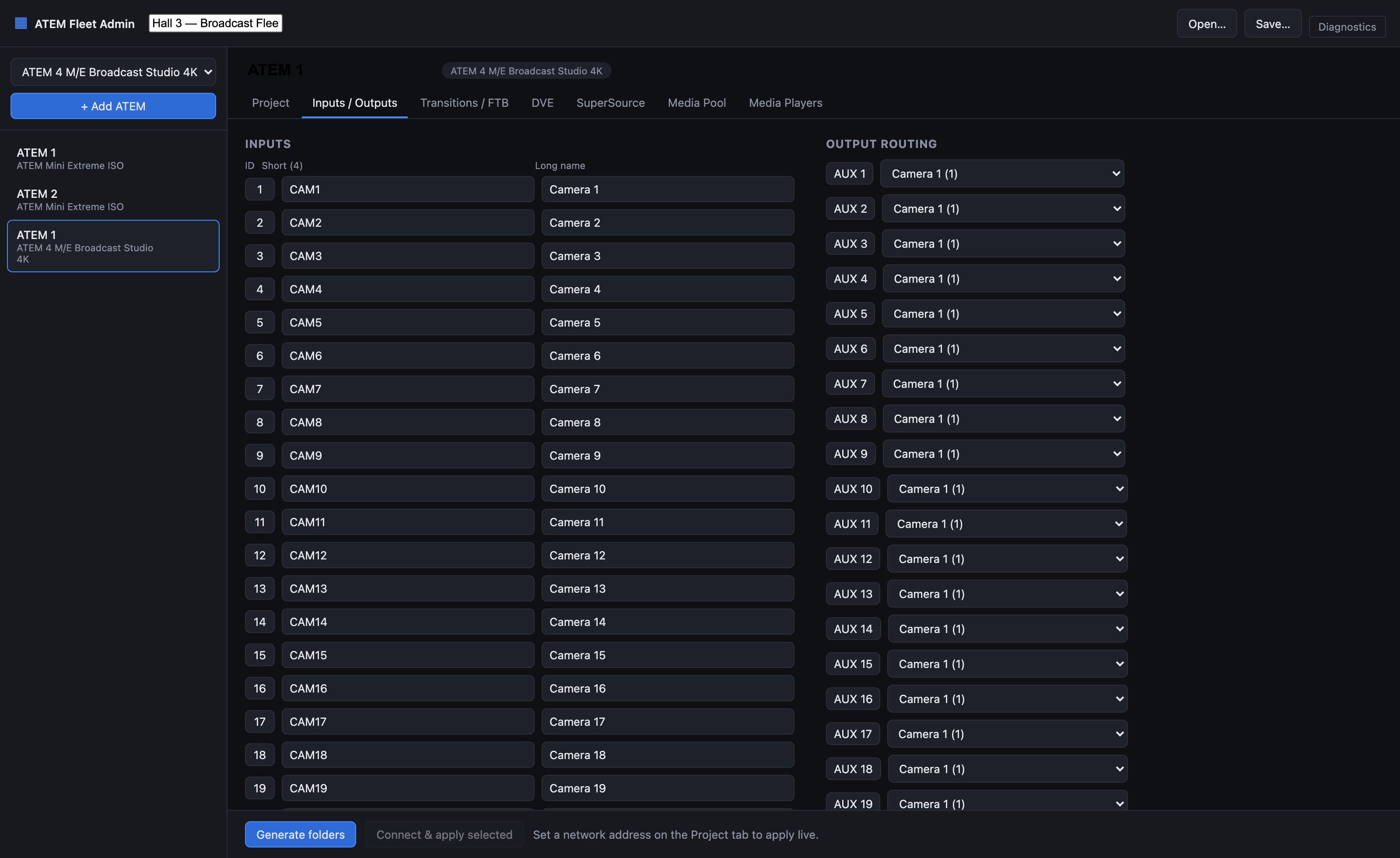
Note the Short (4) column — the switcher’s own limit, and the reason long names get truncated.
What the forms cover: input/output names · show/project name (the recorder filename) · recording bitrate · recording mode (program vs ISO) · output sources including UVC · SuperSource layout and sources · media pool items · media player assignments · streaming destination, key, type and bandwidth · fade-to-black · default transition time and type · DVE settings.
Two models ship: ATEM Mini Extreme ISO and ATEM 4 M/E Broadcast Studio 4K. They span the two hardware classes; other models need a catalog entry — see DEVELOPING.md.
Path A — Generate folders
The higher-fidelity route. It writes a loadable config per device:
<OutputDir>/<FleetName>/<DeviceName>/config.xml
<OutputDir>/<FleetName>/<DeviceName>/Media/...
Drag the Media/ files into the switcher’s media pool, then use ATEM Software Control’s Load
to apply config.xml.
Check mediaMissing on every export
If a media item has no file path, or its file can’t be copied, the export does not fail. The item is listed under “media missing” for that device and everything else continues.
So a device that reports success can still have an empty Media/ folder. That is exactly what
a mistyped or moved source path looks like. Check the missing list before you leave site.
Device names that sanitise alike will collide
Folder names have < > : " / \ | ? * and whitespace replaced with _, and trailing dots
stripped. Studio 1 and Studio/1 both become Studio_1, and the second overwrites the
first. There is no uniquing and no warning. Name devices distinctly.
The Mini’s streaming/recording XML is unverified
No ATEM Mini save file was available as ground truth, so the Mini’s <Streaming> and
<Recording> XML elements are reconstructed from the protocol, and should be validated
against a real Mini before you rely on them.
For those two fields specifically, live apply is the authoritative route, not the XML. The big-switcher XML is validated against a real autosave file.
Path B — Connect & apply
Set a network address on the Project tab and click Connect & apply selected. It connects and applies the settable subset, reporting a status per setting group.
| Applied live | Reported as folder-export only |
|---|---|
| Input names | UVC / USB-C output routing |
| Output routing (AUX) | Recording bitrate / quality |
| SuperSource boxes | Media pool items |
| Media player assignments | |
| Default transition rate | |
| Fade to black rate | |
| Streaming service | |
| Recording ISO mode |
After a completely successful live apply, three things are still not set on the switcher: the USB webcam routing, the recording quality, and the media pool contents. The Ethernet protocol cannot reach them.
The result marks those steps skipped, not failed — deliberately, so nothing is applied silently and nothing is falsely reported as done. Skipped is not an error. It is a to-do. Use the folder export for those three.
Other behaviours worth knowing:
- Input short names are truncated to 4 characters, silently — that is the switcher’s limit.
- The transition rate and fade-to-black rate are applied to every M/E on the model, not just M/E 1.
- A connection failure appears as a single “Connect” step in error, not as a crash — so a
device that was never reached looks like a normal result with one bad row. Check
connected.
A sensible order of operations
- Build the fleet and save the project file.
- Generate folders first, and check every device’s
mediaMissinglist. - Load
config.xmlon each switcher via ATEM Software Control, and drag the media in. - Use Connect & apply for the settable subset when you want to push a change without walking round the rig — remembering it can’t do the three skipped groups.
- Keep the fleet project file. It is the only record of what you intended.
The web target has no authentication
Defaults are localhost:4720, which is safe. But the host is configurable
(ATEM_FLEET_ADMIN_HOST), and binding anything other than localhost exposes, with no
password:
- an endpoint that reconfigures real switchers on your network, and
- an endpoint that writes files onto the host’s filesystem.
There is no token, no login and no TLS. Leave it on localhost.
Troubleshooting
| Symptom | Cause |
|---|---|
Export succeeded but Media/ is empty |
Source files missing or unreadable — check the media-missing list; it is not an error. |
| A device’s folder is missing or has the wrong contents | Two device names sanitised to the same folder name and one overwrote the other. |
| Live apply reported “skipped” rows | Expected. Those settings can’t be reached over Ethernet — use the folder export. |
| Applied everything, USB output still wrong | UVC routing is folder-export only. |
| Applied everything, recording quality unchanged | Recording bitrate is folder-export only. |
| Input names came out truncated | Short names are cut to 4 characters — a switcher limit. |
config.xml won’t load into ATEM Software Control |
Usually a model mismatch — the product string has to match exactly. For a Mini’s streaming/recording sections, note they are unverified. |
| Everything reported error | Check connected — a failed connection shows as a single Connect step in error. |
| “unknown ATEM model” | The model isn’t in the catalog. Two ship; others need adding. |
| Generated folders aren’t where I expected (web target) | They are on the server’s machine, under its export directory. |
| Tray app’s helpers die silently on macOS | Only on a self-built or pre-notarisation copy — the releases are signed and notarised. Approving an unsigned .app does not unquarantine its bundled binaries. See launcher/SIGNING.md. |
See also
- API.md — HTTP/IPC surfaces, the model catalog, the full apply-step table
- DEVELOPING.md — the run targets, the three tsconfigs, the catalog invariant
- README — what it does, field coverage, the two output paths