

Burrow is a desktop app that installs, updates and removes the Stoatworks plugins, tools and Companion modules. It’s one list with one click for each thing, and it knows where every format goes on your machine.
Status at v0.3.1. Read this first.
I’ve tested Burrow thoroughly against real plugin downloads, but no plugin has been installed into a running Resolume, Resolve or After Effects through it yet. If you’re about to use it before a show, don’t. Try it on a machine where a broken plugin folder wouldn’t cost you anything.
Updating Burrow itself arrived in v0.2.3, the first release that publishes an update for the next one to find, and no copy has updated itself in the field yet. The download is signature-checked and refused if it doesn’t match, and the .dmg and .pkg on this page are always there as the route that doesn’t depend on any of it.
On Windows it can install FFGL plugins for Resolume, but not OpenFX or After Effects plugins. That part isn’t written yet, and it says so rather than half-working.
Applications and Companion modules arrived in v0.2.0, and no application has been installed into a real Applications folder through it yet, nor a module into a real Companion.
This is an AI-assisted project, directed and reviewed by a human author.
Installing Burrow
Download it from the project page, open the disk image and drag Burrow to your Applications folder. On Windows, run the installer.
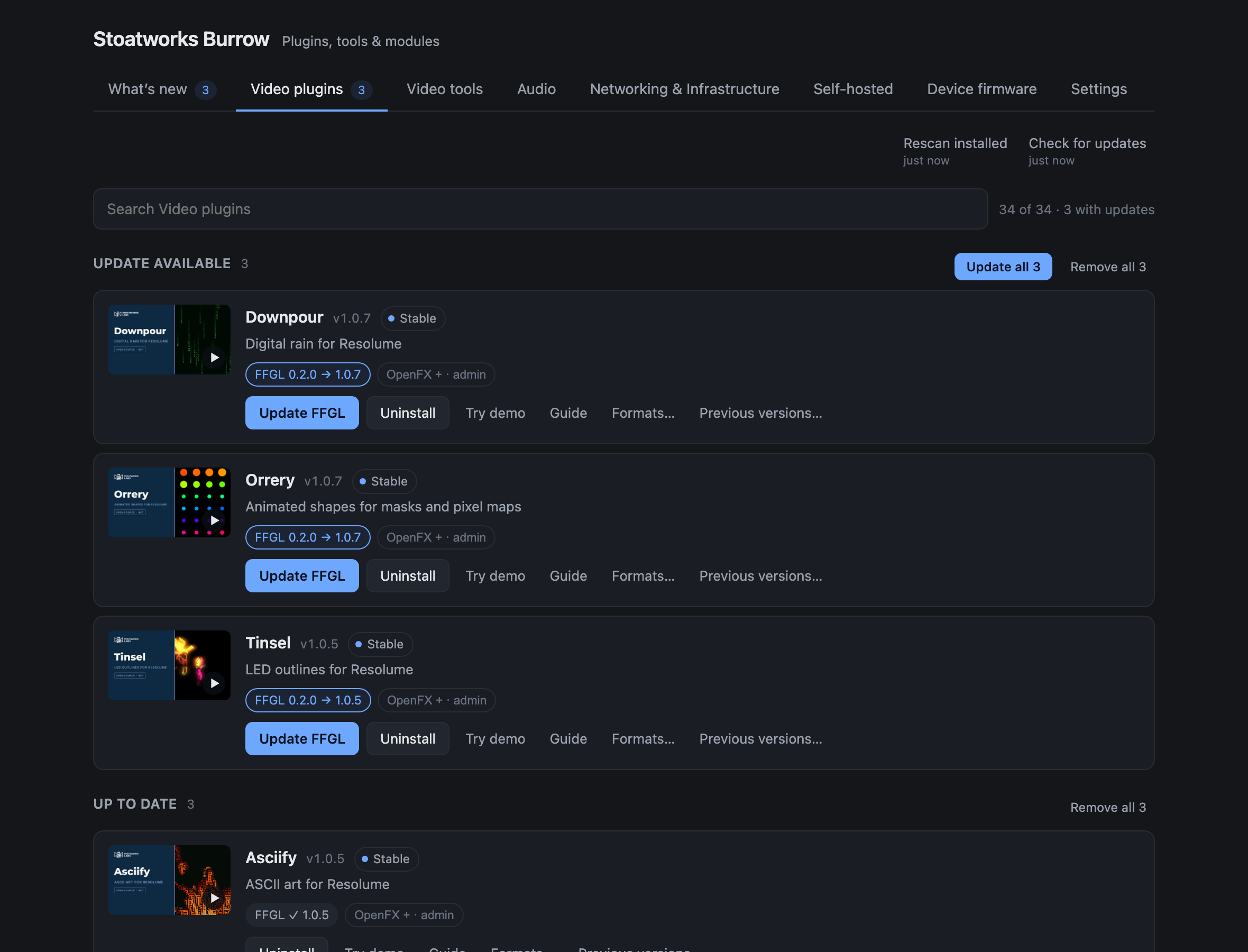
The plugin list: update available, up to date and not installed, with the per-format state on every row.
You don’t need Burrow for anything. Every plugin can still be downloaded and installed by hand, the same as before. Burrow just saves you doing it.
The tabs
The fleet’s bigger than the video plugins now, so it’s split up by what each thing is for:
| Tab | What’s in it |
|---|---|
| Video plugins | The Resolume, Resolve and After Effects effects you load into a host |
| Video tools | The applications you launch, and the Companion modules that drive them |
| Audio | VST3 and Audio Unit plugins, and the audio tools that run on their own |
| Networking & Infrastructure | The tools that move signals around a network and keep a rack running |
| Self-hosted | Things you run rather than install — containers, and the browser tools |
| Device firmware | Coming soon — nothing in it yet, and it says so |
An effect you load into Resolume is a different errand from an application you launch, which is why the video ones are two tabs rather than one.
A number beside a tab is how many things in it need updating.
The first thing you’ll see
Burrow reads your plugin folders and shows you what you’ve already got. It doesn’t change anything until you tell it to.
There are three headings, in the order they need your attention:
- Update available: you have it, and there’s a newer version.
- Up to date: you have it, and it’s current.
- Not installed: it’s available, and you don’t have it.
Each row shows which formats that plugin comes in and what you have of each:
| What you see | What it means |
|---|---|
FFGL ✓ 1.0.2 |
Installed, current |
FFGL 1.0.1 → 1.0.2 |
Installed, and there’s an update |
OpenFX + |
Available, not installed. Click it to install just that one |
OpenFX + · admin |
Same, but it will ask for your password |
FFGL ✓ version unknown |
It’s installed, but nothing on disk says which version |
Adobe — |
No build of this plugin for that host |
Beside the version, each row says how far along that project is, using the same status the website gives it, in the same words:
| Field proven | Released, and run on real events — not just verified on the bench |
| Field testing | Out of the lab and being used in real conditions — not yet trusted blind |
| Stable | Tagged 1.0 builds: the feature set and the controls have settled |
| Released | Tagged builds you can download and run |
| In development | Working, moving, not yet tagged |
Hover over it to see the same sentence. It’s worth reading before a show: Field testing and In development mean what they say.
Doing a whole heading at once
Each heading has buttons for the plugins underneath it (Update all, Install all, Remove all), and each one does what the button on every row under it would do, for all of them at once. They only appear when there’s more than one row to act on. With a single row, its own buttons are right there.
They act on what you can see. If you’ve typed in the search box, the count on the button is the number that survived the search, and those are the only ones that’ll be touched.
Install all and Remove all ask first, and tell you how much there is to download or what’s about to be deleted. Update all doesn’t ask, because it only brings what you already chose up to date.
“Version unknown” isn’t a fault. On Windows a plugin is a bare .dll with no
version in it, so Burrow really can’t tell. It’ll offer to reinstall the current
version rather than pretend to know. It also happens on macOS if you built a plugin
yourself, or installed one before you had Burrow.
Keeping it current
There are two buttons above the list, because they do different jobs:
Rescan installed re-reads your plugin folders. It doesn’t use the network at all, so it works offline and it’s instant. Press it after installing or removing a plugin by hand, and Burrow will notice without needing to be told twice.
Check for updates fetches the plugin list. This is the one that finds new versions and new release notes, and the only one that goes anywhere.
Both tell you what they actually did (“2 new versions · 1 now needs updating”, or “Nothing changed”), and each shows when it last ran. If the version numbers you’re looking at came from the copy that shipped with the app rather than a live check, the second button says not checked instead of a time.
Self-hosted
Some of this software doesn’t get installed at all. You run it.
Self-hosted holds two kinds of thing: the tools that ship a
docker-compose.yml (flock, SRT Router, ATEM Overseer and the rest), and the
browser tools that already run on the website. They’re together because they raise
the same question: how do I run this?
A browser tool has nothing to install, so its row offers Open (the copy running on the website) and Source. Where it ships a compose file there’s also Run your own, which shows you the file with Copy and Save buttons, so you can host it yourself instead of using mine.
Software you installed yourself
Burrow only manages what it installed. If you already had one of these applications or audio plugins on the machine, it’ll say not installed and offer you a download, because an application doesn’t carry a name Burrow is looking for, so it can’t see it.
Settings → Software already on this machine → Look for it. Anything it recognises is listed with the file, the folder it’s in, and the version. Press Claim and it tells you what that means before you confirm: Burrow records the file as its own, will replace it when there’s an update, and will delete it if you uninstall, the same as anything it installed itself.
It recognises things by the identifier inside the bundle, not by the filename, so renaming a file won’t fool it, and nothing that isn’t mine can be offered by accident. On Windows there’s no identifier to read, so a claim there is taking your word for it, and Burrow says so on the row.
Release undoes a claim. It only makes Burrow forget the file. Nothing is moved or deleted.
Updating Burrow itself
Those two buttons are about the plugins. Burrow’s own version is in Settings, under Burrow itself, with a Check for a new version button beside it.
If there is one, you get the version, the date and the release notes before anything is downloaded, and Install and restart does what it says: it replaces this copy and reopens it. There’s a Check when Burrow starts checkbox if you’d rather be told at launch. It’s off until you turn it on, and even then nothing is downloaded or installed until you press the button.
The download is checked against a signature made when the release was built. One that doesn’t match is refused rather than installed.
There are two things it’ll tell you instead of updating, and both are about where this copy of Burrow is:
- Running from the disk image. If you opened Burrow from inside the
.dmgrather than dragging it to Applications, that disk is read-only and nothing can replace it. Drag it across and update from there. - In a folder you can’t write to. Most likely
/Applicationson a machine where you’re not an administrator. Burrow offers the download page instead.
Watching a plugin before you install it
Every plugin’s video is the picture at the left of its row. Click it and the video plays in the window.
The still images are part of the app rather than fetched from YouTube, so the list works offline and browsing plugins tells Google nothing. Only pressing play loads anything, and only for that one video.
It plays from the project’s own GitHub release (the same place its plugins come from) rather than a YouTube embed. So there are no cookies, ads or suggested videos afterwards, and nobody outside this app and GitHub knows you watched it. There’s an Open on YouTube button if you’d rather watch it there.
The videos are about 11 MB each and start playing while they download. A couple of plugins don’t have a copy in the app yet, and clicking those opens YouTube in your browser instead.
Formats, and which ones you want
Most plugins come in more than one format. They’re the same effect; the format is just which application loads it.
| Format | For |
|---|---|
| FFGL | Resolume Arena and Avenue |
| OpenFX | DaVinci Resolve, Vegas Pro, Nuke, Natron |
| Adobe | After Effects and Premiere Pro |
| VST3 | Ableton Live, REAPER, Cubase, Studio One, SuperRack |
| Audio Unit | Logic Pro, GarageBand, Final Cut Pro |
| Application | Nothing — it runs on its own |
| Companion module | Bitfocus Companion |
In Settings, tick the ones you use. Burrow starts with everything that needs no password ticked, and OpenFX and Adobe left off, as those are the two that do.
Nothing comes in every format: a video plugin has no VST3 build and an audio plugin has no FFGL one, so ticking a format you never use costs you nothing.
You can override this for a single plugin from its row with Formats…, if there’s one you want in Resolve but not Resolume, or the other way round. A row with its own choice shows a small custom formats label so you can see at a glance that it isn’t following your defaults.
Companion modules
A tool that has a Bitfocus Companion module shows it on the tool’s own row, below the buttons: Companion module v1.0.1, with Install beside it.
Companion has no fixed folder for modules that aren’t in its store. It reads the one you name in Settings → Developer modules path, so:
- Install the module in Burrow. It goes to
Documents/Companion Modulesunless you tell Burrow otherwise, in Settings → Where things go. - Point Companion’s Developer modules path at that folder.
- Restart Companion. It reads that folder once, when it starts.
Already got a modules folder? Change the path in Burrow’s Settings to yours and step 2 is done.
Applications
Applications install straight into your Applications folder, or, if you’re not an
administrator on this machine, into your own ~/Applications, which Spotlight and
Launchpad index just the same. Either way it never asks for a password.
On Windows they go into %LOCALAPPDATA%\Programs, and no Start-menu shortcut is
created: Burrow places the program folder and doesn’t write anywhere else. Make a
shortcut yourself if you want one.
Why it asks for your password
Two of the seven formats need it, and the rest never do. FFGL plugins go into your own
Documents folder, VST3s and Audio Units into your own ~/Library/Audio/Plug-Ins,
Companion modules into a folder you chose, and applications as above. Burrow doesn’t
need anything special for any of those.
OpenFX and After Effects plugins are different. They go into folders that belong to the system:
OpenFX     macOS    /Library/OFX/Plugins
           Windows  C:\Program Files\Common Files\OFX\Plugins
Adobe      macOS    /Library/Application Support/Adobe/Common/Plug-ins/7.0/MediaCore
           Windows  C:\Program Files\Adobe\Common\Plug-ins\7.0\MediaCore
There’s no alternative: those are the only places those applications look. So Burrow asks for an administrator password once, however many plugins are in the batch, and only when the batch actually needs it.
I’ve kept what happens behind that prompt as small as I could. Burrow downloads, unpacks and checks everything first, with no special rights at all. Only then does it hand a separate helper program a list of files to move, and that helper can’t do anything else. It has no way to reach the network and no way to open an archive, it’ll only write into the plugin folders above, and it’ll only delete a file it moved aside itself seconds earlier.
If you change your mind at the password prompt, nothing is lost. Anything in that batch that didn’t need a password is already installed, and the rest is reported as cancelled, not as an error.
/Library/OFX/Plugins is empty, and that’s normal
If you have DaVinci Resolve installed and Burrow tells you there are no OpenFX plugins, nothing’s wrong. Resolve builds its own effects into the application rather than installing them as separate plugins, so that folder is usually empty (and often doesn’t exist at all) on a machine that uses Resolve every day.
Burrow will create it the first time you install an OpenFX plugin.
After installing
Restart the host. Resolume, Resolve and After Effects all read their plugin folders at startup. A plugin installed while they’re running won’t appear until they’re restarted, and in Resolume you may also need to rescan effects.
If a plugin still doesn’t appear, the likeliest cause on macOS is the quarantine flag, which makes Resolume skip a plugin silently rather than telling you. Burrow clears it on everything it installs, so this shouldn’t happen, but if it does, please report it.
Trying a plugin before you install it
Press Try demo on any row. The plugin’s browser demo opens in a window, running the plugin’s own shaders, with nothing to install and nothing sent anywhere. Every demo is built into Burrow, so this works with no internet connection at all.
A few plugins have no demo: Cartridge needs an emulator core you supply yourself, and Amber and nib are too new. Those rows have no Try demo button rather than a button that does nothing.
Going back to an earlier version
If a new version misbehaves, Previous versions… on the row rolls it back. Burrow keeps the last few releases of every plugin, with a link to each one’s notes.
It only offers this for formats you already have installed. Rolling back is for repairing something you have, not for getting something you don’t.
Afterwards the plugin will show an update available, because there will be one. Restart your host to pick the change up.
Uninstalling
Uninstall on any row removes what Burrow installed, and nothing else. That includes formats with an update waiting (a plugin you haven’t updated yet is still a plugin you have), and the button removes every format of it you have on disk. It tells you how many when there’s more than one.
Your plugin folder almost certainly has other things in it: plugins from other people, examples that came with an SDK, your own builds. Burrow doesn’t look at them, doesn’t list them, and can’t remove them. It only ever touches files it knows belong to a plugin in its own list.
If you installed a plugin by hand before you had Burrow, it can still remove it, but it’ll tell you which files it’s going to delete first.
What Burrow sends
There’s no account and no sign-in, because there’s nothing to sign in to.
Burrow fetches one file (the plugin list from stoatworks-labs.com) and
downloads plugin archives and project videos from GitHub. That’s all. It doesn’t
send an identifier, a list of what you’ve installed, or any usage data, and there’s
no third party involved anywhere. The demos run from inside the app and are
blocked from making any network request at all.
Checking for a new Burrow is one more request, to Burrow’s own GitHub release, asking what the current version is. It happens when you press the button, and at startup as well if you ticked that box. Nothing about your machine goes with the question.
The Send feedback button at the bottom of the window is the exception, and only when you press it: it sends what you type, plus the version of Burrow.
When it can’t reach the internet
Burrow works offline. It ships with a copy of the plugin list, so it can still show you everything and tell you what you’ve got installed.
It’ll tell you when it’s doing that, with a banner reading “Showing the plugin list that came with this app”, because version numbers from a list written weeks ago aren’t the same claim as version numbers checked a minute ago, and you should be able to tell which you’re looking at. Installing still works, as the downloads come from GitHub.
If something goes wrong
Errors appear on the row they belong to, saying what actually failed, and stay there until you do something about them. Nothing disappears into a notification you might have looked away from.
A failed install leaves your plugin folder just as it was. Burrow never writes into a live plugin file: it unpacks and checks everything somewhere else first, and only then swaps the finished result into place. If that swap fails partway through a plugin with more than one component, it puts back the ones it had already done.
For anything else, open an issue or use Send feedback in the app.