

This runs on the presentation laptop. It puts the deck on screen, sends it out over NDI, keeps presenter notes, and takes remote control from a Stream Deck or the Master Server.
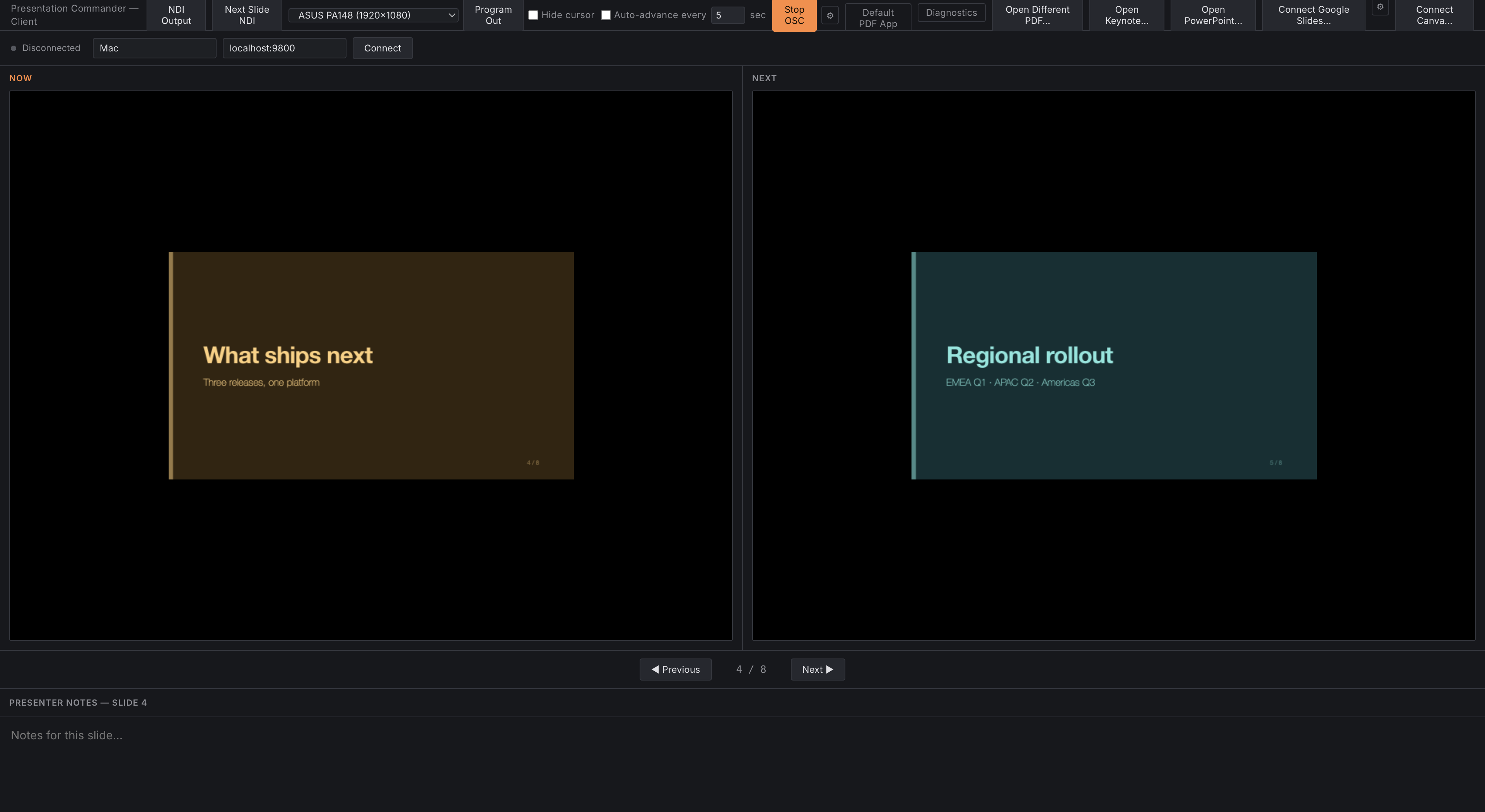
The main window presenting a real PDF: Now and Next, with the Program Out display picker above.
The README covers what each feature is and how to install. This is how to run a show with it, and what will catch you out.
Choose your source first — the capabilities differ
Everything else follows from this choice, because what a source can do depends on what the underlying application actually exposes to automation. These are researched limits, not missing work.
| Keynote (mac) | PowerPoint (mac) | PowerPoint (Win) | Google Slides | Canva | ||
|---|---|---|---|---|---|---|
| Works on Windows | ✅ | — | — | ✅ | ✅ | ✅ |
| Works on Linux | ✅ | — | — | — | ✅ | ✅ |
| Drives the real app | — | ✅ | ✅ | ✅ | ✅ | ✅ |
| Follows the presenter’s own clicker | — | ✅ | ✅ | ✅ | ✅ | ✅ |
| Clickable internal links (TOC, “back to agenda”) | ✅ | — | — | — | — | — |
Sections for goto/section |
✅ | — | — | ✅ | — | — |
| Media play/pause/stop | — | — | — | ✅¹ | — | — |
| Live screen capture (animations, video) | — | ✅ | ✅ | — | — | — |
| Needs the browser extension | — | — | — | — | ✅ | ✅ |
| Needs OAuth setup | — | — | — | — | ✅ | — |
¹ Only while a live PowerPoint slideshow is running independently of this app, and all four media commands are the same keyboard toggle underneath — there is no separate play and pause.
On Linux you will not see “Open Keynote…” or “Open PowerPoint…”. Driving either one needs AppleScript or Windows COM automation, and Linux has no equivalent to offer, so the app hides the two buttons rather than showing controls that cannot work. PDF, Google Slides and Canva are all available there.
The PDF engine is the most capable and the most predictable. It is the only source with clickable internal links, it works identically on all three platforms, and it never depends on another application staying responsive. If you can export the deck to PDF, do — and use presentation-converter if you want the presenter notes carried across with it (Presenter notes).
Nothing drives PowerPoint’s or Keynote’s own fullscreen slideshow mode. That was confirmed unreliable under automation and virtualization on both platforms. This app drives the editing view and puts the audience picture out through Program Out / NDI instead — which is what the audience actually sees, so the distinction doesn’t cost you anything.
Program Out
A second, fullscreen, chrome-free window showing only the current slide, for a projector or confidence monitor. Pick which connected display it opens on from the dropdown.
B/Wblank it to solid black or white without losing your place — the same shortcuts PowerPoint uses. Black and white are one state: turning on white clears black.- An optional checkbox hides the OS cursor over it.
- NDI is independent of this window. You can send NDI without opening Program Out, and vice versa — NDI is a network output, not a local display.
NDI output
Two independent, separately-toggleable senders:
- Program Out — the current slide.
- Next Slide — the upcoming slide, so a stage monitor or director’s preview can show what’s coming without the server compositing anything.
Both are real NDI senders built against the official Vizrt SDK. Each repeats its last frame once a second as a keep-alive, so a static slide doesn’t go stale for receivers expecting a steady feed — a frozen picture at the far end therefore doesn’t prove the sender died.
Live capture (macOS, Keynote/PowerPoint)
Instead of sending a static pre-exported frame, capture the real screen live, so animations, transitions and embedded video actually appear in the NDI output. Opt in per stream via the gear icon next to each NDI toggle; you can crop a sub-region by percentage — useful for isolating just the “next slide” box out of a Presenter Display that shows current, next and notes together.
It captures a whole physical display, not a window. Fullscreen presentation windows aren’t enumerable through macOS’s window-level capture sources — they sit above the level that query reads. So pick the display the deck is on and crop if you need to.
This needs Screen Recording permission on macOS. Grant it in System Settings → Privacy & Security → Screen Recording, and restart the app.
Driving Keynote and PowerPoint
The app talks to a currently-open document in the real application — via AppleScript/JXA on macOS, PowerShell COM on Windows. Open the deck in Keynote or PowerPoint first, then connect.
macOS will ask for Automation permission the first time (System Settings → Privacy & Security → Automation). If you deny it, the bridge fails in ways that look like the deck is empty. Grant it, and grant Screen Recording too if you want live capture.
Things worth knowing:
- Keynote page changes are polled at ~400 ms. Advancing Keynote directly with a clicker is reflected back, but not instantly.
- On macOS, PowerPoint frames are captured one slide at a time via the clipboard. PowerPoint
for Mac declares a bulk
save … as PNG/PDFin its AppleScript dictionary and it is a silent no-op in the tested version, so the app usescopy objectand reads the image off the system clipboard instead. That is slower on a long deck, and it uses the clipboard — don’t be surprised by clipboard churn while a deck loads. - On Windows,
Slide.Exportgenuinely works, so it’s a plain bulk loop. - Sections are read once, when the deck opens. Editing sections mid-show won’t be picked up.
- On macOS PowerPoint, the media and section OSC commands are accepted and do nothing. They’re not rejected — a controller can’t tell the difference between “no media on this slide” and “not supported on this platform”.
Presenter notes
Notes are per-slide and auto-save to a .notes.json file next to the PDF.
Two file shapes are read: the bare {"1": "note"} map this app writes itself, and the richer
sidecar written by
presentation-converter, which carries
provenance — the source deck, the engines used, and whether hidden slides shifted the page
numbering.
Editing notes in this app preserves that provenance. If the file came from presentation-converter, the app merges your edits into it rather than overwriting it with a bare map — so the source-deck record isn’t destroyed the first time you fix a typo.
Why the hidden-slide detail matters: exporters drop hidden slides, so slide count and page count are not the same number. If notes look off by a slide or two on a deck with hidden slides, that mapping is where to look.
Google Slides and Canva
Both need the unpacked Chrome extension in extension/ — load it at chrome://extensions →
Developer mode → Load unpacked. Both relay through a local WebSocket bridge on port 9801.
- Google Slides needs a one-time OAuth client registration in Google Cloud Console to
fetch speaker notes. The ⚙ next to “Connect Google Slides…” walks you through it in-app and
takes the client ID directly — no file editing. You must then reload the extension at
chrome://extensions, because Chrome only picks up manifest changes on reload. Full walkthrough atextension/OAUTH_SETUP.md. - Canva needs no OAuth. Its notes and slide position are scraped from the Presenter Window’s DOM, because Canva has no public API for either. Open Present → Presenter view.
Consequences of that difference:
- Google Slides notes lag the frame slightly — the frame and index arrive immediately, the notes come a beat later from the API.
- Canva notes are scraped, so they arrive with the frame — but scraping is inherently fragile. A Canva UI change can break notes without breaking anything else.
- Canva shows notes only when they’re non-empty. The element the app reads only exists once notes have content; an empty-notes slide has a placeholder prompt instead, which can’t be read.
Remote control
From the Master Server
Connect to the Master Server’s
hub at ws://<host>:9800. The app registers by name, streams slide position and notes, and
accepts next/previous-slide commands from the server’s Control Surface.
⚠ There is no automatic reconnect. If the link drops — a network blip, the server restarting, a switch rebooting — it stays disconnected until you reconnect it by hand. Watch the connection indicator during a show; the app will keep presenting perfectly well while silently no longer being remote-controllable.
⚠ Give every machine a distinct name. The server identifies clients by name, so two laptops registering as the same name collapse into one entry on the server.
From OSC / Stream Deck
A UDP OSC address space at /presentcommander/..., with a dedicated
Companion module.
Default ports: listens on 35551, sends feedback to 127.0.0.1:35550. Off by default.
The full address list is in [API.md Program Out](API.md#1-osc-control). What catches people out:
- Actions must be enabled. While disabled, every message except
actions/enableis dropped silently. This is the number one cause of “the button does nothing”. - Feedbacks must be enabled for anything to come back — except
feedbacks/refresh, which always sends. pause/resumedo nothing unless timed auto-advance is already turned on. They suspend an existing auto-advance timer; they don’t start the feature.black/white/laserpointertoggle when sent with no argument. If a controller sends a malformed argument, it’s treated as absent — so a badly-formed “blackout on” can turn blackout off.goto/sectionis case-sensitive and does nothing on an unknown name.- Nothing ever reports a refusal. An unsupported or ignored address is silently dropped.
⚠ OSC has no authentication. Anything that can send a UDP datagram to port 35551 can jump slides, blank the screen, open and close Program Out, list and open files from the watched folder, and change the desktop wallpaper. Keep it on a control network.
The watched folder
Off by default. When enabled, OSC can open a deck by filename with no dialog — useful for a button wall that loads a specific deck on cue.
The folder is always set relative to your home directory. Only .pdf, .key, .pptx and
.ppt are listed or openable, and any filename containing /, \ or .. is refused. A
refusal is a silent no-op, not an error.
Other remote features
- Laser pointer — mirrors your mouse position over the “Now” preview onto Program Out as a glowing dot. Source-agnostic, since it’s a display overlay.
- Set wallpaper — renders what’s on screen and sets it as the desktop wallpaper on every connected monitor. macOS and Windows fully; Linux is GNOME-only.
- Timed auto-advance — “advance every N seconds”, stops at the last slide rather than looping.
Troubleshooting
| Symptom | Cause |
|---|---|
| OSC does nothing at all | Actions are disabled. Send /presentcommander/actions/enable first (Remote control). |
| No OSC feedback | Feedbacks are disabled, or the feedback host/port is wrong. feedbacks/refresh always sends — use it to test. |
pause does nothing |
Auto-advance was never turned on (Remote control). |
| Blackout turned off when I asked for on | A malformed argument is treated as absent, and no argument means toggle (Remote control). |
goto/section does nothing |
Case mismatch, or the source has no sections at all — only PDF and PowerPoint-on-Windows do (Choose your source first — the capabilities differ). |
| Media commands do nothing | Only PowerPoint on Windows, and only with a live slideshow running separately. On macOS they’re accepted and ignored (Driving Keynote and PowerPoint). |
| Notes garbled / non-ASCII wrong | Read notes-utf8 (blob) rather than notes (string) (API.md Program Out). |
| Server link silently stopped working | It dropped and there is no auto-reconnect (Remote control). |
| Two laptops show as one on the server | They registered with the same name (Remote control). |
| Keynote/PowerPoint bridge acts like the deck is empty | macOS Automation permission was denied (Driving Keynote and PowerPoint). |
| Live capture is black or stalls | Screen Recording permission, or the wrong display picked. Capture is per-display, not per-window (NDI output). |
| PowerPoint deck loads slowly on macOS, clipboard keeps changing | Expected — frames come one at a time through the clipboard because bulk export is a silent no-op there (Driving Keynote and PowerPoint). |
| Sections changed mid-show and didn’t update | They’re read once at open (Driving Keynote and PowerPoint). |
| Google Slides notes are blank or late | They arrive a beat after the frame, and need the OAuth client ID plus an extension reload (Google Slides and Canva). |
| Canva notes blank | Canva only renders the element the app reads when notes are non-empty (Google Slides and Canva). |
| Extension stops relaying after a while | MV3 service worker suspension. The extension reconnects defensively on every message for this reason; if it persists, reload it at chrome://extensions. |
| Notes off by a slide or two | Hidden slides shift page numbering — slide count ≠ page count (Presenter notes). |
| NDI receiver shows a frozen frame | Not necessarily dead — the sender repeats the last frame every second by design (NDI output). |
| macOS says the app is damaged | Not the released build — those are signed and notarised. A self-built or pre-notarisation copy is quarantined; see the README’s Gatekeeper section. |
Before a show
- Pick the source type deliberately (Choose your source first — the capabilities differ) — PDF if you can.
- Grant macOS Automation and Screen Recording permissions and restart, if you need Keynote/PowerPoint or live capture (Driving Keynote and PowerPoint).
- Open the deck in its app first, then connect the bridge.
- Check notes came across, especially on a deck with hidden slides (Presenter notes).
- Give the machine a distinct name before connecting to the server (Remote control).
- Enable OSC actions and feedbacks and prove one button before you rely on the wall (Remote control).
- Check the NDI receivers actually see both senders.
- Keep the control network private — neither OSC nor the server link is authenticated (Remote control).
See also
- API.md — the full OSC address space, server protocol, extension bridge, sidecar format
- DEVELOPING.md — building it
- README — feature detail, architecture, prior art