

For the operator running the show. The README covers installing and getting past the unsigned-build warnings; this is what to do once it’s open, and what to be careful with.
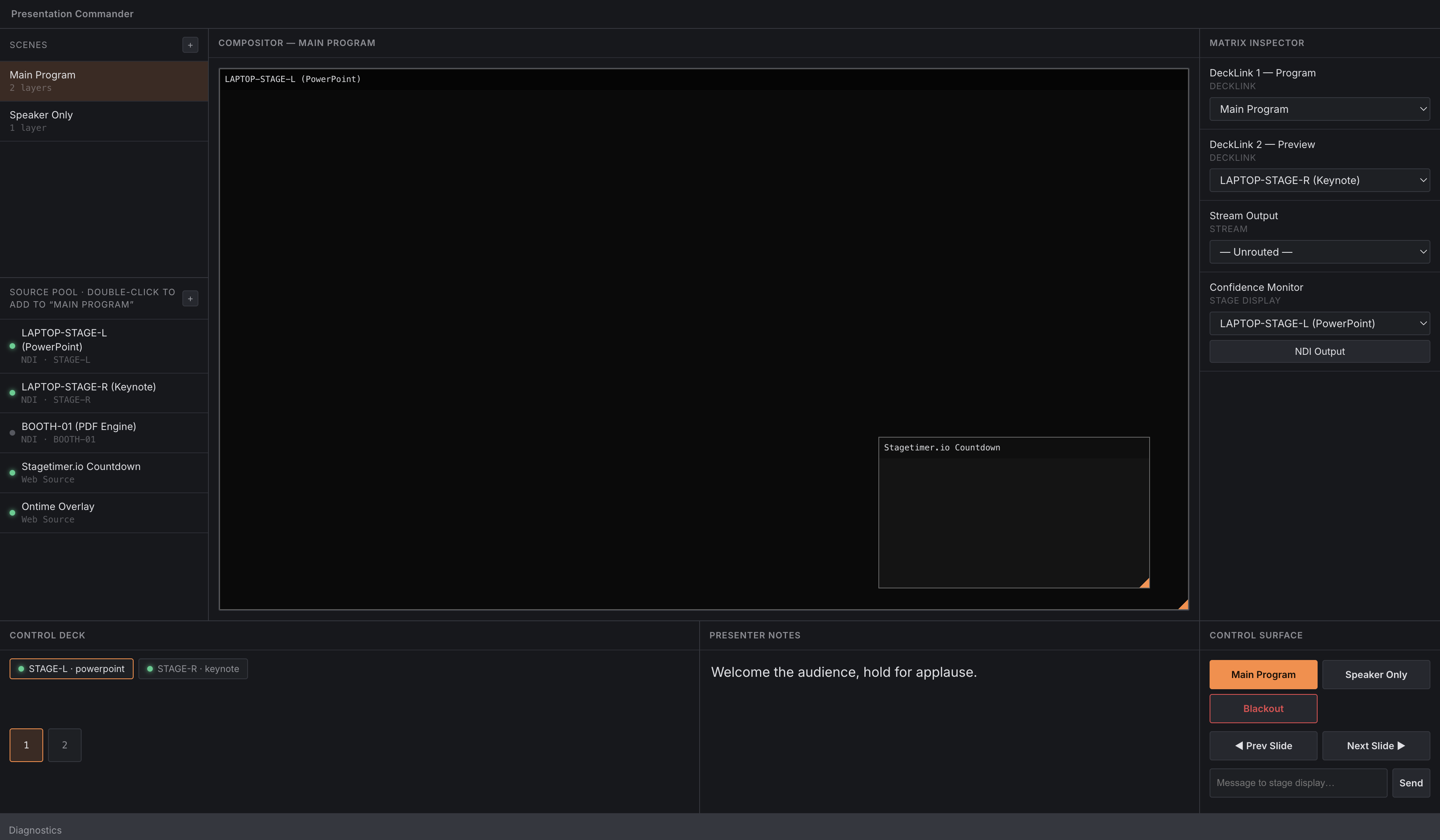
The main window: scene compositor, source pool, matrix inspector, control deck and control surface.
What is real, and what is not
This matters more here than in most apps, because the interface shows you a broadcast router and some of it is a model rather than a machine.
| Feature | State |
|---|---|
| NDI discovery (finding senders on the network) | Real — mDNS, same mechanism NDI uses |
| NDI receive (live video in the compositor) | Real — official Vizrt NDI SDK, decoded frames |
| NDI send (the confidence monitor output) | Real — a genuine NDI sender other devices can subscribe to |
| Web sources, scenes, layering, routing | Real — within the app |
| Client Hub: notes, slide position, next/previous | Real — when a client is connected |
| DeckLink and other physical broadcast I/O | Not implemented. No signal leaves a card. |
Routing to a “DeckLink” output changes the picture in this app and nothing else. There is no capture-card driver — it is out of scope, because the project has no hardware to test against. The output exists in the model so the routing logic is right; it does not put video on an SDI connector. The one output that genuinely reaches other equipment is the NDI confidence-monitor sender.
This is an AI-assisted codebase, directed and reviewed by a human author. Review it before relying on it in production — that is the README’s own posture and it is the right one. It has not been proven on a live show.
First launch: clear out the demo data
The app starts with seed data baked in, and it looks like a configured rig:
- three NDI sources (
LAPTOP-STAGE-L (PowerPoint),LAPTOP-STAGE-R (Keynote),BOOTH-01 (PDF Engine)) - two web sources (Stagetimer.io, Ontime)
- two scenes (
Main Program,Speaker Only) - two client nodes (
STAGE-L,STAGE-R) with presenter notes - outputs pre-routed
None of it is real. LAPTOP-STAGE-L is not on your network. Delete the sources and scenes
you don’t want before you build anything, or you will at some point route a black frame to a
screen because the thing you routed never existed.
The two demo clients cannot be deleted from the UI — they disappear only when the app is restarted, which also discards your own work (Nothing is saved).
Nothing is saved
All state lives in memory. There is no project file, no autosave, no recent-documents list.
Quitting the app discards every source you added, every scene you built, and every route you set. Next launch comes back to the demo data in First launch: clear out the demo data.
Practically, on a show day:
- Do not quit the app between rehearsal and doors. Building the scene stack is the work; it is not recoverable.
- A crash costs you the same. There is no recovery.
- Plan for a rebuild: write your source list and scene layout down somewhere outside the app, because the app cannot tell you what it had.
- There is no way to hand a configuration to a second machine, or to prepare one offline.
This is the single biggest operational limitation of the current build.
Sources
Three kinds, from the Source Pool panel.
NDI — the important distinction: a source picked from network discovery carries a host
and port, and that is what makes live preview work. A source added by typing a machine name
has no port, will show connected: false, and will never show video in the compositor. If a
layer stays a grey box, this is almost always why. Use the discovery picker.
Discovery is mDNS. It finds senders on the local link — it does not cross subnets, and a sender on a different VLAN will simply never appear. That is a network fact, not an app fault.
Web — any URL, rendered in the compositor. Tick transparent for overlays that carry alpha (Stagetimer, Ontime, lower thirds); leave it off for a full-frame page.
Notes — renders a connected Client Node’s current slide’s presenter note as a text layer. This is what makes a real confidence monitor: composite a Notes source over a video source and send the result out as NDI (The confidence monitor).
Deleting a source is destructive and immediate
Removing a source clears every output routed to it and strips it out of every scene that used it. No confirmation, no undo. A source deleted while on air blacks out its outputs.
Scenes
A scene is a stack of layers. The bottom of the list renders first; the last layer is on top. Drag to reposition, drag a corner to resize, toggle visibility per layer.
Geometry is stored as percentages of the canvas, not pixels, so a scene holds its layout at any output resolution.
A layer backed by a real network NDI source shows live decoded video, not a placeholder. That is the quickest way to confirm a source is genuinely arriving before you route it anywhere.
Deleting a scene clears any output routed to it, same as with sources.
Routing
The Matrix Inspector routes each output to either a single source or a whole composited scene. There are four outputs and the list is fixed — you cannot add, remove or rename one.
| Output | Kind | Reaches real equipment? |
|---|---|---|
| DeckLink 1 — Program | decklink |
No (What is real, and what is not) |
| DeckLink 2 — Preview | decklink |
No |
| Stream Output | stream |
No |
| Confidence Monitor | stage-display |
Via the NDI sender (The confidence monitor) |
Blackout is simply “route to nothing”. To undo it, route the output back — there is no separate blackout state that clears itself.
The confidence monitor
The one path that produces a signal other equipment can receive.
Build a scene containing a video source plus a Notes source, then start the NDI output. The composited frame — video with the presenter’s live current-slide note over it — is published as a real NDI sender, so a stage monitor, a decoder or another NDI-capable device can subscribe to it. The presenter sees a broadcast picture, not a text box in the operator’s window.
Two behaviours worth knowing:
- The sender repeats the last frame every second as a keep-alive, so a static composite doesn’t go stale for receivers that expect a steady feed. A frozen picture at the far end is therefore not proof the sender died.
- The output control is a toggle. Pressing it while running stops the sender and ignores the name field.
Client Nodes and presenter notes
A Client Node is the client app running on a presentation laptop. It connects to this server’s hub on port 9800, registers, and streams its slide position and notes.
When one connects it automatically appears as a routable source named "<name> (<app>)" —
you don’t add it, and you can’t usefully remove it (the next registration recreates it).
The Control Deck shows live notes and slide position per client. The Control Surface gives you scene recall, blackout, next/previous slide and send-note-to-stage as buttons.
Client names must be unique
Registration matches on name. Two laptops registering as STAGE-L collapse into one
client — the second overwrites the first’s platform and app, and both sets of slide state
land on the same entry. Name every machine distinctly before the show.
Next/previous slide can succeed without advancing anything
If the target client is connected, the command is forwarded to it and the real deck moves.
If it is not connected, the server falls back to simulating locally: it moves its own idea of the slide index to the next slide it holds a note for. The button lights, the number in the UI changes, and nothing happens on the presentation laptop. If there are no notes for that client at all, absolutely nothing happens — and the control still reports success.
Before trusting a slide button, check the client shows as online. This applies equally to the Stream Deck buttons, which go through the same path.
Anyone on the network can register as a client
The hub listens on all interfaces with no authentication — no password, no token, no allowlist, no TLS. Any device that can reach port 9800 can register itself as a Client Node and push presenter notes that you will see, and that a Notes source will composite onto a stage monitor.
Run this on a locked-down production network. It is not safe on venue or guest Wi-Fi.
Stream Deck / Companion
The Companion module drives the server over HTTP on port 9700, using exactly the same command path as the in-app Control Surface — so a button and a click do the same thing by construction.
That port is bound to 127.0.0.1 only, on purpose. It executes commands with no
authentication whatsoever, so opening it to the network is a decision the operator should make
deliberately — an SSH tunnel or an authenticating reverse proxy — not a default. If Companion
runs on a separate Stream Deck machine, see the module’s README for how to reach it.
send-note has one slot, not a queue — each message replaces the last. There is no clear
button; send an empty message.
Troubleshooting
| Symptom | Cause |
|---|---|
| A layer shows a grey box, never video | The NDI source was added by typing a name rather than picked from discovery, so it has no port and cannot be received (Sources). |
| A sender on the network never appears in discovery | mDNS doesn’t cross subnets. Different VLAN = invisible. |
| Routed an output, nothing appeared on the screen | If it’s a DeckLink or Stream output, that is expected — no physical I/O exists (What is real, and what is not). |
| Everything vanished after a restart | Expected. Nothing is persisted (Nothing is saved). |
| Demo sources are back | Same cause — the app reseeded (First launch: clear out the demo data). |
| Two laptops show as one client | They registered with the same name (Client Nodes and presenter notes). |
| Slide button “works” but the deck doesn’t move | The client is offline and the server simulated it locally (Client Nodes and presenter notes). |
| Slide button does nothing at all | Client offline and no notes held for it — the fallback has nothing to move through. |
| A client’s notes are stale | Notes are replaced wholesale on each sync, and timestamps are stamped at receive time, so they show the last sync, not when a note was written. |
| A client is sending but the server ignores it | Malformed JSON is dropped silently, and slide-state before register is ignored. Nothing is logged to the operator. |
| Deleting a source blacked out an output | Expected and immediate — deletion clears routes and scene layers (Sources). |
| Confidence monitor frozen at the far end | Not necessarily dead — the sender repeats the last frame every second by design (The confidence monitor). |
| Companion can’t reach the server | Port 9700 is loopback-only. It needs a tunnel from another machine (Stream Deck / Companion). |
| macOS says the app is damaged | Not the released build — those are signed and notarised. A self-built or pre-notarisation copy is quarantined; see the README’s Gatekeeper section. |
Before a show — a short checklist
- Launch the app and delete the demo sources and scenes (First launch: clear out the demo data).
- Add sources from the discovery picker, not by typing names (Sources).
- Confirm each NDI layer shows live video before routing it (Scenes).
- Check every client shows online before relying on a slide button (Client Nodes and presenter notes).
- Confirm what actually reaches equipment: the NDI confidence-monitor output, and nothing else (What is real, and what is not).
- Do not quit the app until you are done for the day (Nothing is saved).
- Make sure the network this is on is not reachable by anyone you wouldn’t hand the show to (Client Nodes and presenter notes, Stream Deck / Companion).
See also
- API.md — the automation API, client protocol and domain model
- DEVELOPING.md — building it
- README — install, unsigned-build warnings, architecture diagram