

SimpleCue is an audio cue player for theatre, live events and installation. You build a list of cues and press GO.
Before a show: the playback engine is verified sample-by-sample and the control layer is driven end-to-end over real sockets — 380 checks in all. But SimpleCue has never been run on a live show. No MIDI, lighting or streaming hardware has ever been connected to it, and only the macOS/CoreAudio build has been used with real audio hardware. Rehearse with it before you trust it with a performance.
The basics
A cue is an audio file with an in point, an out point, a gain and a pre-wait. The cue list runs top to bottom, and GO fires whatever is on standby.
Everything else is about how cues start, stop, and hand over to each other.
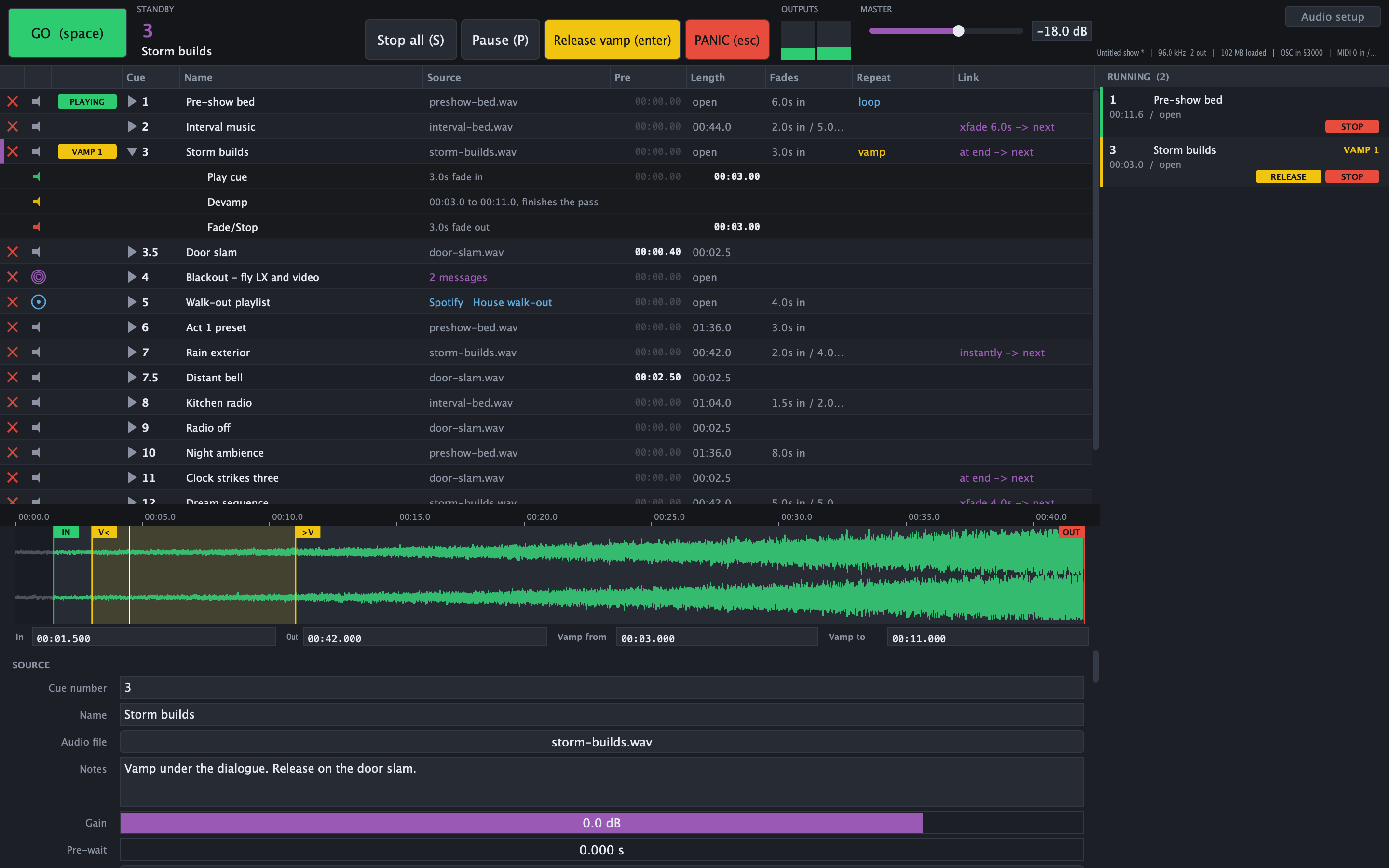
Cue 3 is vamping — the yellow VAMP 1 badge on the row, its Devamp sub-cue exposed
beneath it, and Release vamp lit in the transport. Note the cue numbers: 3.5 and 7.5 sit
between whole numbers, the way a prompt book does.
Cue numbers
Cue numbers are free text, not just integers: 12, 12.5, PRE, INTERVAL. Insert a
cue between 12 and 13 and call it 12.5, the way a real prompt book does.
Fades
Each cue has a fade in and a fade out time, and a shape — five curves are available. A linear fade sounds like it dips in the middle; the other shapes exist because different material wants different curves.
Show-wide defaults for fade times and shape mean you set your house style once.
Links: how one cue leads to the next
This is what turns a list into a show.
- Fire the next cue immediately — the moment this one starts.
- Fire at the end — an auto-follow.
- Crossfade into it — this cue fades out while the next fades in, over a set duration.
A link with no target means the next cue in the list, so inserting a cue between two linked cues does what you’d expect rather than breaking the chain.
Delay is ignored on a crossfade. The crossfade’s own duration governs the timing.
Loops
Repeat a section a set number of times — or forever, which is what a loop count of zero means. Useful for pre-show music and ambient beds.
Vamps — the one worth understanding
A vamp circles a section of a cue until the operator calls for it to continue.
This is the feature that handles live theatre not running to time. Underscore a scene change, or hold music under an entrance, and it goes round and round until you press GO — then it leaves the loop and continues, rather than cutting.
Set the vamp region (start and end) and enable it — the Vamp from and Vamp to fields
under the waveform, drawn on it as the shaded region between the V< and >V markers. While
vamping, the cue’s Devamp step appears; GO releases it.
Cue lifecycles and GO
A cue expands into the steps it actually needs:
- Play — always
- Devamp — only if the cue has a vamp
- Fade / Stop — always
GO walks these one at a time. That’s why a vamping cue takes an extra GO to release: the first GO devamps, the next moves on.
By default, firing a cue also plays it, and standby skips straight past the Play step — so you’re never offered the same audio twice.
Output routing
Each cue has a routing matrix mapping source file channels to device output channels, with a gain per point. A stereo file can go to outputs 3 and 4, a mono effect to a single speaker, one channel can feed several outputs.
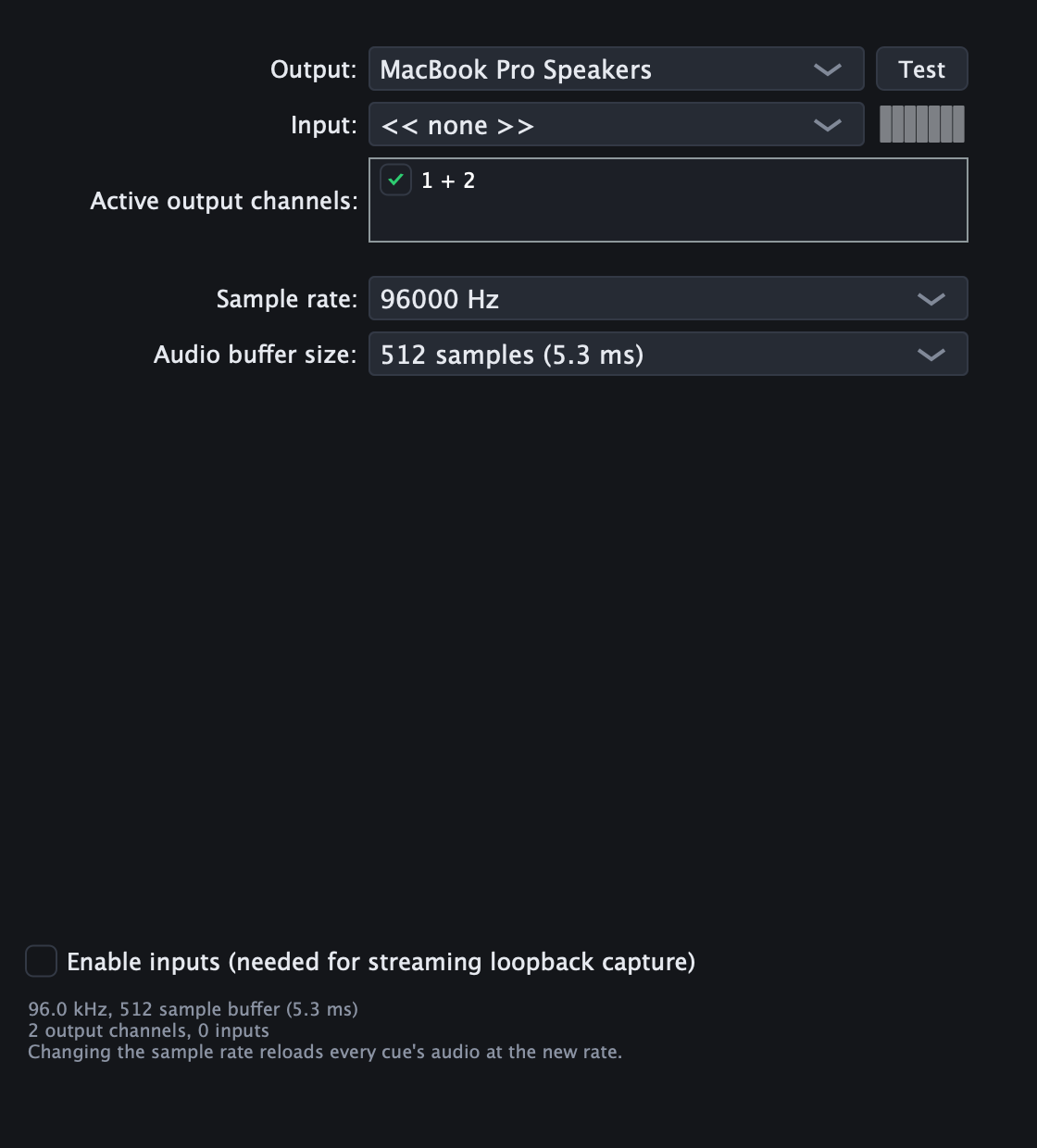
Audio is resampled to the device rate at load time, which is what makes the loop and vamp maths exact integer sample arithmetic. The consequence to know about: changing the device sample rate reloads every cue in the show. Do it before a show, not during one.
Cues without explicit routing get a sensible default from the file’s channel count and your device’s outputs.
Remote control
SimpleCue can be driven by, and can drive, other equipment:
- OSC — in and out, with Bitfocus Companion support
- MIDI — notes, CCs and program changes
- MIDI Show Control (MSC) and MIDI Machine Control (MMC)
- Art-Net and sACN — trigger cues from a lighting desk
Full details in control.md.
Two things to know as an operator:
Lighting-desk triggers are edge-detected. A cue fires when the level crosses the threshold, not on every frame the desk is sending. Without that, a desk holding a channel at full would re-fire the cue continuously.
DMX addresses cues by their position in the list, not by cue number. DMX can only count,
so it has no way to send 12.5. Every other protocol uses the cue number. This means
inserting or deleting a cue shifts what your DMX triggers point at — re-check your triggers
after editing the list.
Show files
A show saves as a single .cueshow file: plain, readable JSON.
- Audio paths are stored relative to the show file, so a show folder can be copied to another machine and still work.
- Saving is atomic — written to a temporary file and moved into place, so a crash or a pulled USB stick mid-save cannot destroy the show already on disk. At a venue that file is often the only copy.
- Shows saved by an older version open fine. A show saved by a newer version is refused rather than partially loaded — better an honest error than a show that quietly behaves differently from the one you built.
Older cue-player show files still open.
Practical notes
Changing audio device sample rate reloads every cue. Audio is resampled once, at load, which is what makes all the loop and vamp timing exact. Expect a pause, and do it before the show rather than during.
Set your audio device first, then build the show.
Platforms
macOS (universal), Windows (x64 and arm64), Linux (x64 and arm64). Only the macOS/CoreAudio build has been exercised against real audio hardware.