

automitti is a menu-bar app that puts Mitti on a switcher Mitti doesn’t know about, so a Roland V-160HD, an Analog Way Pulse 4K or Midra 4K, an older Analog Way Midra or a LiveCore can drive it the way an ATEM does. It does the same for QLab 5.
Mitti already follows a Blackmagic ATEM: it rolls when the switcher takes it to air, does something you chose when it’s taken off, and can make the switcher take at the end of a clip. automitti gives it that same behaviour on the switchers above. It also sends Mitti’s one OSC feedback stream to as many places as you list, and serves a full-screen clip clock to any browser.
Released at v0.2.1, as a preview: try it with your own kit before a show depends on it. This is an AI-assisted codebase, directed and reviewed by a human author.
Run against real equipment: Mitti 2.8.18 and 2.8.19 (the emulated ATEM, Mitti’s own Pause at End taken on the switcher, NDI tally, OSC, the HyperDeck clip list); Blackmagic’s Switcher SDK 10.2.1, which is what Mitti’s ATEM integration runs; and QLab 5.5.10 with Wait cues only.
Only against simulators: every switcher. The V-160HD driver has met a simulator written from Roland’s documents; the Pulse 4K / Midra 4K driver, Analog Way’s own simulator; the LiveCore and Midra drivers (new in v0.2.0), simulators written from openRCS’s findings on a real NeXtage 16 and Pulse². Several Mittis at once (new in v0.2.0) was run with two Mitti simulators on the V-160HD simulator, not with two real Mittis.
Not verified yet: a Video cue actually playing in QLab, a QLab on another machine or a show-sized QLab workspace; two real Mittis at once; any real switcher with this code; Mitti playing on NDI tally rather than receiving it; Windows and Linux, which have no build.
What you need
- A Mac. The download is universal (Apple Silicon and Intel), signed and notarised by Apple, so it opens with no Gatekeeper warning.
- Mitti, or QLab 5, on this Mac or another one on the same network.
- One of the switchers below, on the same network. With none, the Manual / HTTP switcher lets you set the tally from the page or from Companion.
- For NDI tally only: the NDI runtime, which comes with NDI Tools. automitti doesn’t bundle it.
| Switcher | How automitti talks to it |
|---|---|
| Roland V-160HD | LAN control, TCP 8023, with the unit’s network password |
| Analog Way Pulse 4K / Midra 4K (QuickVu, Pulse, Eikos, QuickMatrix) | AWJ, TCP 10606 |
| Analog Way LiveCore (Ascender 16/32/48, NeXtage 08/16, SmartMatriX Ultra) | Analog Way’s mnemonic protocol, TCP 10500 |
| Analog Way Midra (Pulse², Eikos², Saphyr, SmartMatriX², QuickMatriX, QuickVu) | the same protocol, TCP 10500 |
| Manual / HTTP | none: the page, or POST /api/switcher |
Install and start it
- Open the disk image and drag automitti to Applications.
- Open it. It lives in the menu bar; its window has a Network interface and a Port (8710 unless you change it).
- Press Start server, then Open. The control page opens in your browser at
http://<this Mac>:8710/, and any other machine on the network can open the same address.
Everything else is set on that page and saved in
~/Library/Application Support/automitti/config.json. You can change it from a browser on
another machine mid-show without restarting anything. A settings file from v0.1.x is carried
across as the first Mitti.
The control page
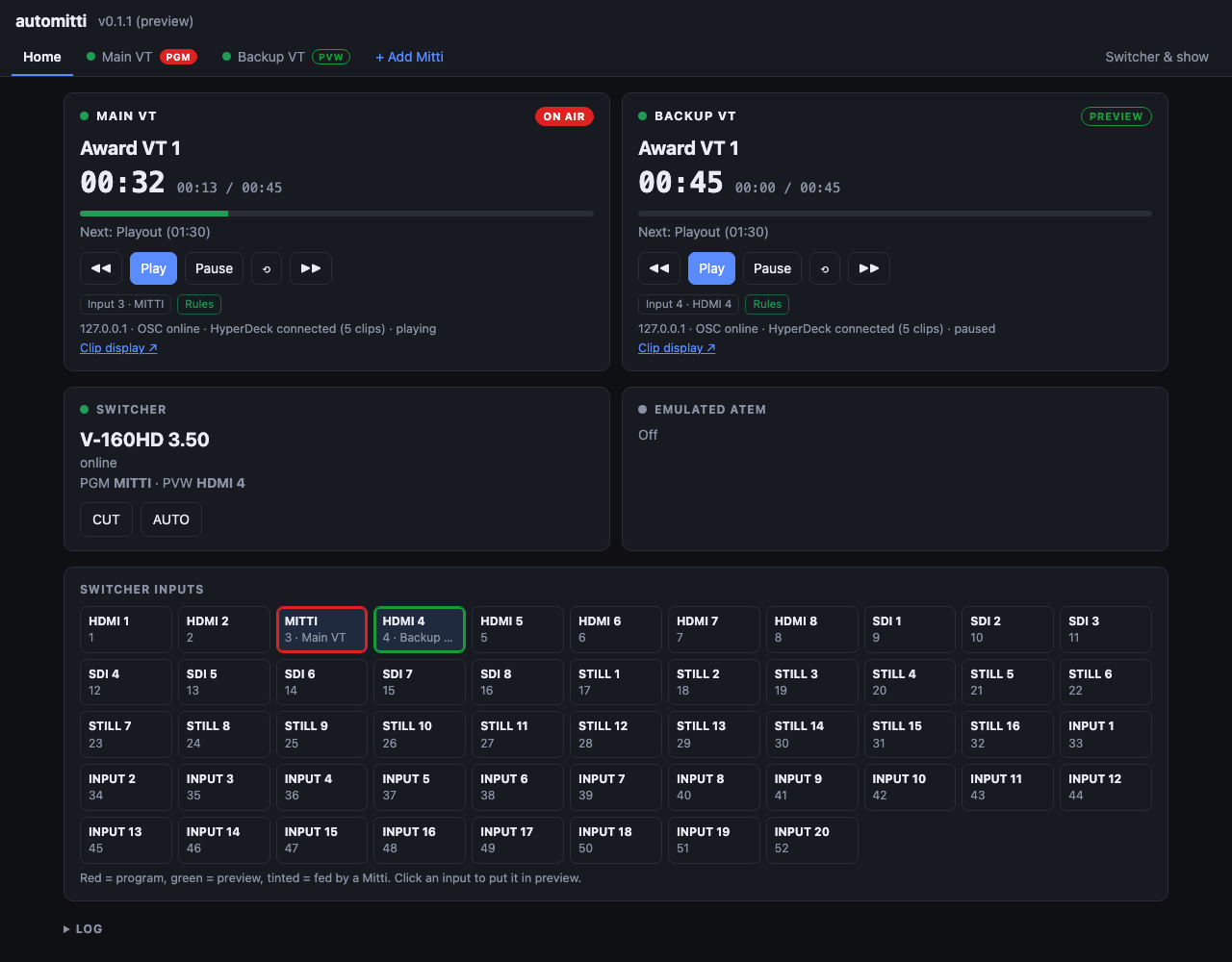
- Home shows every Mitti together: its clip and countdown, the next clip, its tally, which switcher input it’s on and what’s driving it (ATEM, NDI or Rules). Below are the switcher, with CUT and AUTO, and its inputs; click an input to put it in preview.
- A tab per Mitti, with + Add Mitti next to them. A tab holds that Mitti’s settings, its transport (previous, Play, Pause, rewind, next) and cards for its NDI tally, rules and feedback relay.
- Switcher & show holds what every Mitti shares: the switcher, the emulated ATEM, the network and the clip display colours.
Edits are a draft. Unsaved changes appears with Save and Discard, and nothing changes until you save.
1. Connect the switcher
In Switcher & show → Switcher, choose the switcher and fill in its address. The page shows its status; once it’s online its inputs appear on Home, with their names.
- V-160HD: set a 4-character NETWORK PASSWORD on the unit (MENU → LAN CONTROL) and enter it here. The unit allows one LAN client, so RCS over LAN can’t run at the same time.
- Pulse 4K / Midra 4K: optionally limit it to some screens (
S1,S2), and choose the layer that preview and program selects write to. - LiveCore: optionally limit the screens, choose the layer for selects, and set the take time. A take sweeps the T-bar over that time, because the LiveCore’s own take commands stall over this protocol; 0 makes it a cut.
- Midra (Pulse², Eikos²…): the frame has no input names, so type them in order. A Pulse² takes one control session, so close RCS2 or openRCS first. A Midra refuses an input with no signal, and automitti tells you when it does.
- Manual / HTTP: set the number of inputs. Program and preview come from the page or from
POST /api/switcherwith{"action": "program" | "preview" | "cut" | "auto", "input": n}, which Companion’s HTTP action can send.
What counts as on air. On the V-160HD, the switcher’s own tally. On the Analog Way switchers, an input is on air while it’s a source of a layer in what a screen is showing, and during a take both sides count, so a clip rolls as the mix starts rather than after it.
2. Connect Mitti
Open the Mitti’s tab and fill in This Mitti:
- Name: its tab and its clip display title.
- Its switcher input: a number or the input’s name, such as
3orHDMI 3. - Mitti address:
127.0.0.1when Mitti is on this Mac. Mitti OSC port is 51000. - Feedback listen port: 51010 for the first Mitti. Each Mitti needs its own.
- Read clips over HyperDeck: gives the clip display the next clip’s running time.
Then, in Mitti:
- Preferences → OSC: set Feedback To to automitti and the feedback port above. On the same
Mac, choose Custom,
127.0.0.1, port 51010. Mitti saves an entry picked from its Bonjour list (automitti-51010) as a bare IP address, so after the Mac changes network Mitti keeps sending to the old one and automitti shows it offline. - HyperDeck control on, for the clip durations.
3. Choose how Mitti follows the switcher
Pick one of these per Mitti. Two at once both act on every take.
| Way | In Mitti | In automitti |
|---|---|---|
| ATEM (the most complete) | Integrations → ATEM → automitti, and the input it is on | Switcher & show → Emulate an ATEM |
| NDI tally | Integrations → NDI | the Mitti’s tab → Send NDI tally to this Mitti, and its NDI source |
| Rules over OSC | OSC on (it already is, for feedback) | the Mitti’s tab → Enable rules, Send over OSC |
| Rules over HyperDeck | HyperDeck control on | Enable rules, Send over HyperDeck |
ATEM. automitti answers on the network as an ATEM whose inputs, names, program, preview and tally are the real switcher’s. Mitti finds it over Bonjour. Every option Mitti has for an ATEM then works unchanged, and when Mitti’s Pause at End asks for a CUT or an AUTO, the real switcher does it. Every Mitti can use the one emulated ATEM at once, just as several can share a real one. It uses UDP 9910, one per machine, so don’t run it where ATEM Software Control is connected to a real ATEM.
NDI tally. automitti joins the Mitti’s NDI output as a metadata-only receiver (no video crosses the network) and reports it on program while its input is on air. Find NDI sources fills in the list.
Rules. automitti runs Mitti’s ATEM behaviour from its own side:
| Setting | Choices |
|---|---|
| On program | Play · Do nothing |
| On preview | Do nothing · Rewind to the top |
| Taken off air | Do nothing · Pause · Stop and rewind · Stop and load the next cue |
| Cue ends | Do nothing · CUT · AUTO |
| End lead | how many seconds before the end Cue ends fires |
4. Several Mittis
Press + Add Mitti for a second one: main and backup, or one per kind of content. Each gets its own tab, switcher input, feedback port, relay list, NDI tally and rules, and each can use a different one of the ways above. All of them share the one switcher and the one emulated ATEM.
- A new Mitti gets the next free feedback port (51011, 51012…) and shows up in Mitti’s
Feedback To list as
automitti-51011. Two Mittis set to the same port are flagged on both. - Remove a Mitti from the foot of its tab.
- Over HTTP,
POST /api/playertakes"device": the Mitti’s id (from its tab’s address,#/device/<id>) or its name. Without it, the request goes to the first Mitti.
This is new in v0.2.0, and so far it’s only been run with two Mitti simulators on the V-160HD simulator: a cut to each one’s input rolled that Mitti and only that one. Check it with your own Mittis first.
5. QLab instead of Mitti
A Mitti’s tab can drive QLab 5 instead: set Player to QLab. QLab has no ATEM or NDI integration, so the rules are what roll it, and you’ll need to turn on Enable rules. Play GOes the cue list, or resumes a clip that was paused; Cue ends takes the switcher off it; Taken off air can pause or stop it.
- QLab address and QLab OSC port (53000). automitti uses OSC over TCP.
- OSC passcode. A new QLab 5 workspace makes up a 4-digit passcode and gives connections without one no access. Copy it from Workspace Settings → Network → OSC Access; it needs Control for the rules to work.
- Workspace and Cue list: left empty, it takes the first workspace open and the current list.
- Cue types that are clips: Video unless you add others. Light, audio and fade cues between two videos are skipped, and the clip display’s Next is the next video.
QLab answers nothing while no workspace is open, and the tab says so until one opens. A wrong passcode locks you out for a few seconds, so automitti tries once and then waits 30 s.
This is new in v0.2.0, and checked on a real QLab 5.5.10 with Wait cues only: joining, play, pause, resume, stop and rewind, a clip running out, and a take onto QLab’s input GOing the cue with its end AUTOing back. A Video cue actually playing hasn’t been checked, and nor has a pre-wait, a clip inside a Group, or a QLab on another machine. QLAB.md has the details.
6. Send Mitti’s feedback on
Mitti sends its OSC feedback to one address. Under Feedback relay destinations, use Add destination for each thing that wants it, whether that’s Companion’s Mitti module (51001, 51002…), a Stream Deck or another machine, and every packet is re-sent to each, byte for byte.
7. The clip display
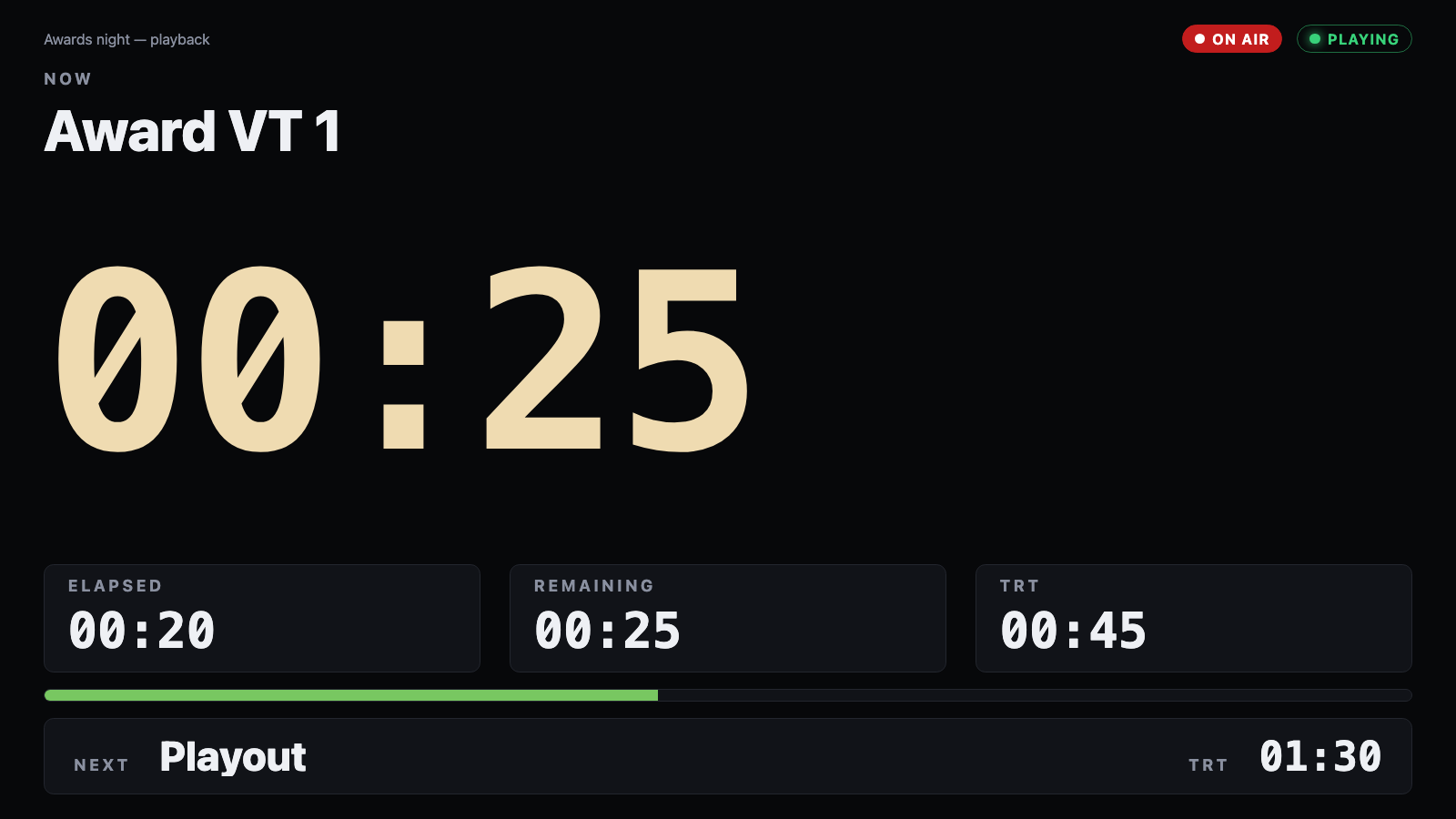
Open http://<this Mac>:8710/display?device=<id or name> full screen on any browser; each
Mitti’s tab links to its own. It shows the current clip, a big countdown, the elapsed time,
running time and a progress bar, the next clip and its running time, and an on-air or preview
chip from the switcher’s tally. The countdown turns amber under 30 s and red under 10 s; change
both under Switcher & show → Clip displays, with Show frames. Add &frames to the
address for frames on one screen only.
When something is wrong
- Mitti doesn’t see the emulated ATEM, or connects to the wrong address. Mitti uses the first IPv4 address Bonjour gives it, which on a Mac with ZeroTier or Tailscale is often the VPN. Set Switcher & show → Network → Announce on address to the show network.
- Mitti shows offline after a network change. Its Feedback To is a stale address; see Connect Mitti.
- “Answered, but not as a HyperDeck.” ZeroTier owns TCP 9993, the HyperDeck port, so Mitti’s HyperDeck emulation can’t start. Only the next clip’s running time is lost, until that clip has once been current.
- The V-160HD won’t connect. Close RCS: the unit takes one LAN client.
- A Pulse² won’t connect. Close RCS2 or openRCS: it takes one control session.
- Mitti acts on every take twice. It has two ways on at once, such as its own ATEM integration and automitti’s rules. Pick one.
- “UDP 9910 is in use.” ATEM software or another emulator on this Mac holds the ATEM port, and there’s one per machine. Close it, or run automitti on another Mac.
Protocol research, the driver contract and how to add your own switcher or player are in the README and the other files in docs/.
Not affiliated with or endorsed by imimot (Mitti), Figure 53 (QLab), Roland, Analog Way, Blackmagic Design or Vizrt. NDI® is a registered trademark of Vizrt NDI AB (ndi.video).