

Peephole
A camera or capture card, full screen
What it does
You have a camera or an HDMI capture card plugged in and you want to look at it — on a second screen, at the back of the room, on the laptop beside the desk. OBS will do it, after a scene, a source, a preview, a projector output and a window to hide. This is that job with nothing in front of it: open the page, press Start, press Full screen.
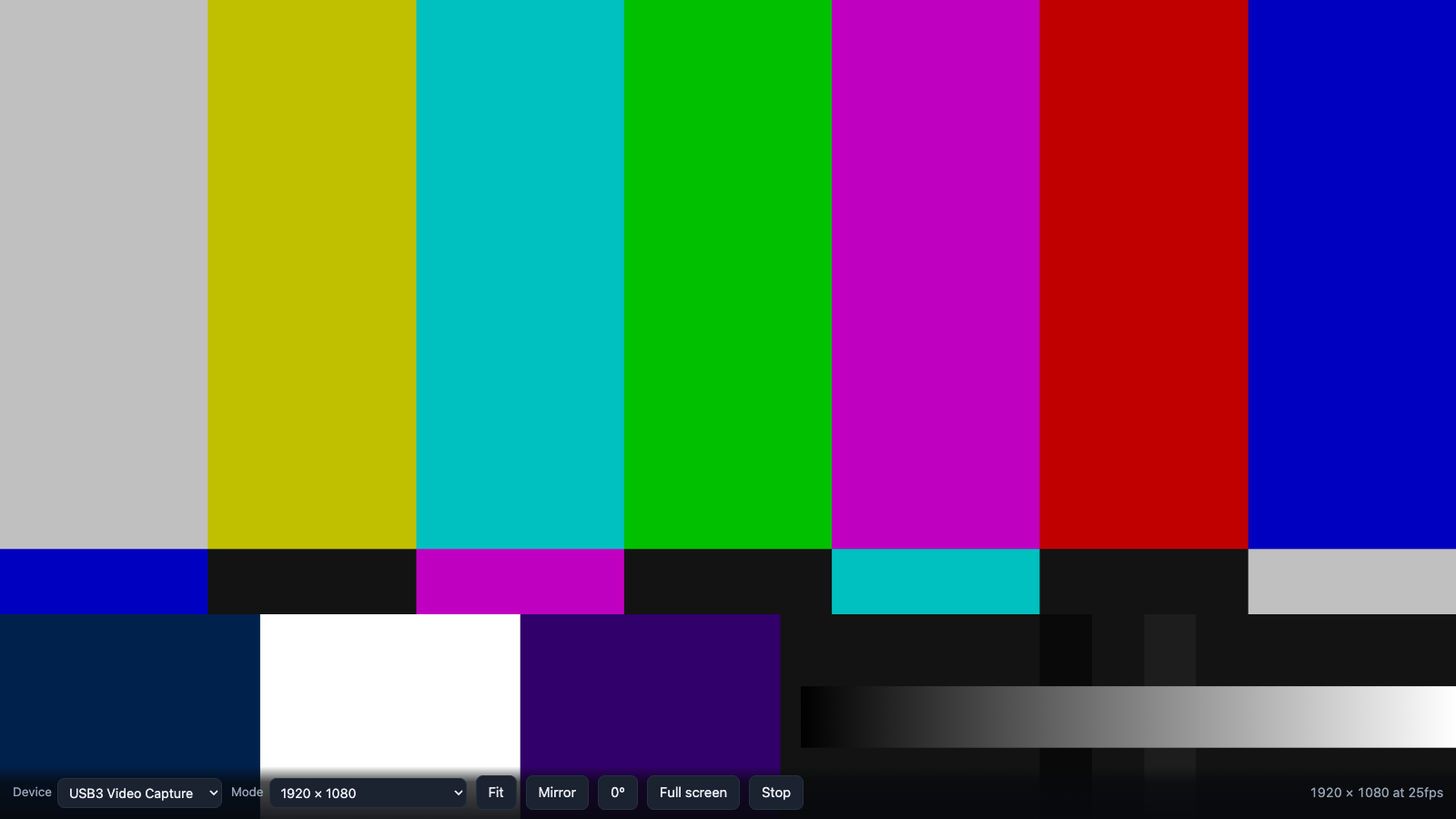
The reason it is not a ten-line page is the capture card. A UVC device advertises a mode list and the browser chooses conservatively from it, so a 1080p card can open at VGA with nothing on screen to say why the picture is soft — it reads as a bad cable or a tired card. Peephole asks the device for its capabilities, offers what it really supports, and puts what the stream actually settled on in the corner. Ask for 1920 × 1080 and get 640 × 480 and it says so.
The rest is the difference between a demo and something you would leave running. The screen is held awake while a picture is up, and the lock is re-taken when you come back to the tab, because browsers drop it whenever the tab is hidden. The device is remembered by name as well as by id, because ids are rotated whenever the site's camera permission is reset. A stream that ends — card unplugged, another app taking it — says so rather than leaving a frozen last frame that looks like a working picture. And getUserMedia's errors are rewritten into what to do about them: "something else usually has it: OBS, Teams, Zoom, or another tab of this page".
Since v0.1.0 it is also a desktop application, for macOS, Windows and Linux, that needs no network at all — not to install, not to run, not ever. It is not a wrapper around this page: there is no localhost server and nothing being fetched, the bundle is served to the window from inside the application itself, and the page is given a Content-Security-Policy that forbids opening a connection while the process cancels every outbound request besides. The reason it is Electron rather than something lighter is the mode picker: it is built from getCapabilities(), which only Chromium implements, so a shell using each platform's own webview would give the real mode list on Windows and a guessed ladder on macOS and Linux — the same tool behaving differently on each desk.
- Every video input the browser can see, including HDMI capture cards, which appear like any other camera
- Mode picker built from the device's own reported capabilities, falling back to a standard ladder where the browser will not say
- A readout of what the stream really settled on, and a warning when it is smaller than what was asked for
- Screen wake lock while a picture is up, re-taken when the tab comes back — and an honest note where the browser has none
- Device and mode remembered by id and by name, so it survives a permission reset
- Mirror, quarter-turn rotation, fit or fill; keyboard F, M, R and C
- In full screen the bar and the cursor fade after a couple of seconds of stillness
- Static page, no server, no account: the picture never leaves the browser and nothing is recorded
- Desktop app for macOS, Windows and Linux that makes no network connection at all — no updater, no telemetry, no analytics
- In the app, full screen is the window rather than an element inside it, and the device's own mode list is available on all three platforms
Where it stands
Working and deployed as a page, and shipped as a desktop app since v0.1.0. Both shapes have been driven end to end — the page in a browser against an injected MediaStream, the packaged app against a synthetic capture device, covering device switching, mode changes, the readout, full screen, and settings surviving a restart. Neither has been run against a real camera or a real capture card, which is exactly the part the mode picker exists for, so treat the capture-card behaviour as unproven until it has. Nobody has launched the Windows or Linux builds on Windows or Linux either.