

VoiceLevel is a virtual fader for a live microphone that only ever moves down. It watches how loud the talker is and pulls the fader towards a target level at an operator’s pace, holds still while they pause, and never adds gain — so it cannot push a channel into feedback, and because it has no look-ahead it adds no latency to the signal. VST3 and CLAP, plus a standalone app for trying it on a real mic.
Before you rely on this: the leveler is pinned by unit tests — it never boosts, sample for sample; it pulls a hot signal to target at the speed you set; it holds through silence; Learn measures speech with the pauses left out — and the VST3 passes
pluginvalat its strictest level with a reported latency of 0. It has been run live on synthesised speech through the standalone build. It has not yet been used on a real microphone at a real event, and it has met few hosts. Check it in your own rig first.This codebase was created with AI assistance, directed and reviewed by a human author.
The idea
A leveler for speech has one job on a stage: when the presenter leans into the mic and gets loud, bring them back down before the room complains. A compressor does that syllable by syllable and changes the sound; an AGC does it in both directions and will happily lift the gain during a pause until the system feeds back.
VoiceLevel does what a good operator does with a hand on the fader instead:
- It only ever turns the mic down. 0 dB is the ceiling. There is no path in the plugin that can add gain, whatever the settings, so a quiet talker is left alone and a pause cannot creep the gain up towards feedback.
- It moves like a fader, not a compressor. The attenuation slews at a rate in dB per second — a loud talker is brought down over a second or two, not clamped on every peak. The sound of the voice is untouched; only its level moves.
- It holds still through pauses. When the mic drops below the hold threshold the fader freezes where it is. A pause is not a reason to bring a hot mic back up.
- Zero latency. The audio path is a single gain multiply with no look-ahead, so it adds nothing to the delay through the desk. What lags is the fader’s movement, and that lag is the point.
- Learn listens to the talker during the soundcheck and parks the fader at the position that puts them on target for the rest of the show.
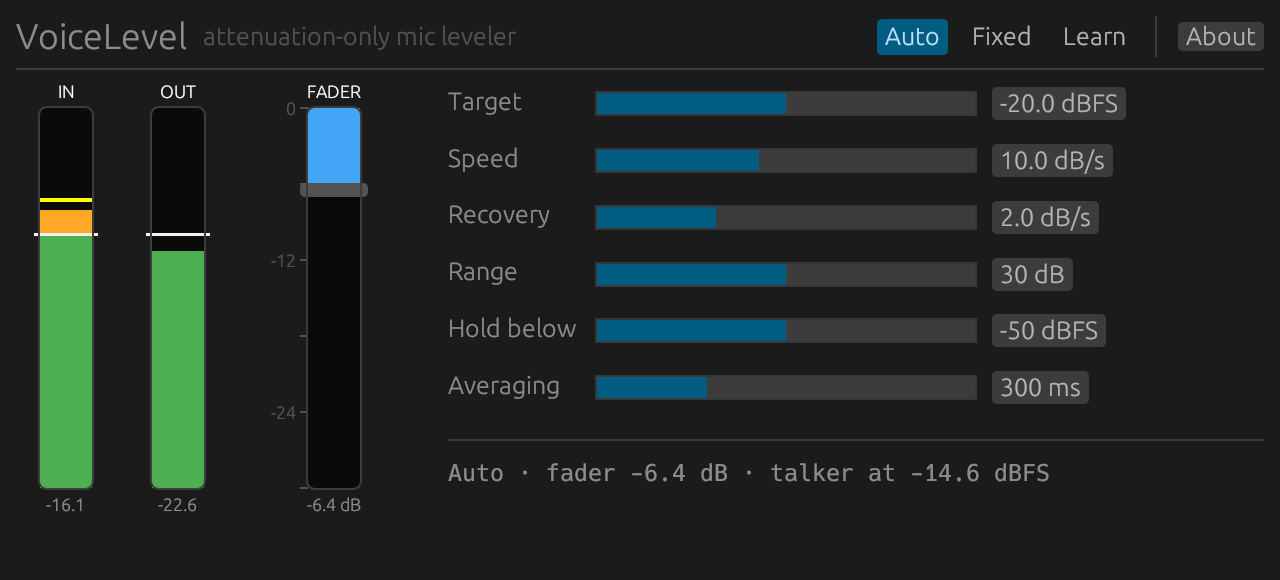
Auto mode with a talker measured at −14.6 dBFS against a −20 dBFS target: the fader has been pulled down 6.4 dB. The yellow tick on the input meter is the talker’s level with the pauses left out — the thing the fader is actually steered by.
Installing
Take a release build from the releases page,
or build it from source with cargo xtask bundle voicelevel --release.
- macOS — the
.pkginstalls the VST3 to/Library/Audio/Plug-Ins/VST3/, the CLAP to/Library/Audio/Plug-Ins/CLAP/and the standalone to/Applications, with a checkbox for each. The.dmgcarries the same three bundles for anyone who would rather drag them into~/Library/Audio/Plug-Ins/. The builds are Developer ID-signed and notarised, so there is no quarantine step. - Windows — the installer puts everything under
C:\Program Files\VoiceLevel\. Point your host atVST3\VoiceLevel.vst3(or copy it intoC:\Program Files\Common Files\VST3\) andCLAP\VoiceLevel.clapintoC:\Program Files\Common Files\CLAP\. The.zipis the same files without the installer. The Windows builds are unsigned — see UNSIGNED.md for the one-time SmartScreen click-through. - Linux — the
.deband.rpminstall the VST3 to/usr/lib/vst3/and the CLAP to/usr/lib/clap/. The.zipholds the bundles and the standalone binary.
Then rescan plugins in your host. VoiceLevel appears under Stoatworks, as a mono or a stereo effect.
Setting it up on a channel
Insert it on the microphone channel — after the high-pass and any EQ, before the compressor if you use one, so the compressor sees a levelled signal.
- Set the target. This is the RMS level you want the talker to sit at on the plugin’s input meter, in dBFS. −20 dBFS is a sensible default for a channel that then goes on to a compressor and the mix bus; if your gain structure runs hotter or cooler, match it to where a good talker already sits. The white line across both meters is the target.
- Watch the fader. With the mode on Auto, talk into the mic. The yellow tick on the IN meter shows the talker’s level; when it is above the white line the fader starts down at the Speed you set, and the OUT meter settles on the target. When the talker is under target the fader eases back up towards 0 dB at the Recovery rate — and it stops at 0 dB. It never goes above.
- Set the hold. Hold below is the input level under which the fader freezes. Set it just above the room and handling noise the mic picks up when nobody is talking — for most stages −50 dBFS is right, for a noisy one raise it. Too low, and the fader creeps back up during the pauses; too high, and a soft talker never moves it at all.
- Leave the rest alone unless you need it. Range caps how far the fader can ever go; 30 dB covers anything short of someone eating the microphone. Averaging is how much speech the level is judged over — longer is steadier, shorter follows a talker more closely.
The controls
| Control | Default | What it does |
|---|---|---|
| Target | −20 dBFS | The output level the fader aims for, measured as RMS of the speech (pauses are not averaged in). |
| Speed | 10 dB/s | How fast the fader is pulled down when the talker is over target. |
| Recovery | 2 dB/s | How fast it eases back up towards 0 dB when the talker is under target. Deliberately slower than Speed, the way an operator brings a fader back. |
| Range | 30 dB | The most the fader will ever take off, in any mode. |
| Hold below | −50 dBFS | Below this input level the fader does not move at all. |
| Averaging | 300 ms | How much speech the level is judged over. |
| Mode | Auto | Auto — the fader follows the talker. Fixed — the fader stays where it is; drag it by hand. Learn — measure the talker, then park the fader. |
The fader’s position is not a host parameter: it is saved with the session, the plugin moves it in Auto, Learn writes it, and you drag it in Fixed. So there is nothing to automate by accident, and a recalled session comes back with the fader where the show left it.
The meters
IN and OUT are fast RMS meters of the plugin’s input and output, green up to the target and amber (then red) above it, so a hot talker reads as an amber cap. The white line across both is the target. The yellow tick on IN is the talker’s level with the pauses left out — the number the fader is steered by. Both meters ignore what is below 100 Hz: plosives, handling noise and stage rumble sit down there, and they should not pull a fader down. The FADER column shows the attenuation as a blue fill from 0 dB at the top; its scale runs down to whatever Range is set to.
Learn
Learn is for the soundcheck. Press Learn while the talker is speaking; the button counts
the seconds of speech it has heard (pauses do not count) and, after five seconds of it, sets
the fader to talker level − target and switches to Fixed. The status line shows the
level it is measuring and the fader position it would set, live. Press Learn again to stop
early with what it has, or leave it and it gives up after 30 seconds on the clock.
What you get is a fixed attenuation for that talker — predictable, no movement during the show. If the show runs several presenters on one mic, learn the loudest one and switch to Auto afterwards: the fader starts from the learned position and follows from there.
In a host without the editor (a console’s plugin rack, say), Learn is the third value of the
Mode parameter: set it to Learn, let the talker speak, then set it to Fixed. The
commit happens on the change.
Fixed mode
Fixed pins the fader. Drag it to set an attenuation by hand — double-click returns it to 0 dB — and it stays there whatever the talker does. Range still applies: a fader set further down than the Range is pulled back to it.
This is also how to disable the leveling without removing the plugin: Fixed with the fader at 0 dB is unity gain.
Stereo channels
On a stereo track both channels get the same gain, and the louder of the two steers the fader — a mono mic on a stereo insert behaves exactly as it would on a mono one.
The standalone app
The standalone runs the plugin on an audio device, which is the quickest way to hear what it does on a real microphone:
VoiceLevel --backend core-audio -l 1 --input-device "MacBook Pro Microphone" --output-device "MacBook Pro Speakers"-l 1 is the mono layout, -l 2 stereo (the device must have at least that many
channels); --help lists the backends and the rest. On macOS it is VoiceLevel.app; on
Windows VoiceLevel.exe; on Linux the bare VoiceLevel binary in the zip.
Troubleshooting
The fader never moves. The talker is under target (nothing to do — it only turns down), or the input is below Hold below. Watch the yellow tick against the white line.
The fader creeps back up while they pause. Raise Hold below until the pauses read below it on the IN meter, or lower Recovery.
It reacts too slowly / too fast. That is Speed. 10 dB/s means a talker 10 dB over target is on target a second after the fader starts. Averaging also plays in: a shorter Averaging follows a talker’s phrases more closely.
Learn set the fader to 0 dB. The talker measured at or under the target during the learn, so there was nothing to take off. Check the target, or that they were actually speaking into the mic while it listened.
I want it to add gain for a quiet talker. It will not, by design — that is the one thing a leveler on a live mic must never do on its own. Raise the channel gain and let VoiceLevel take off the excess.