Press Start. Press Full screen. That's the whole app.
A webcam or an HDMI capture card, full screen in a browser tab: a confidence monitor at the back of the room, a look at what a card is actually carrying, a second screen on the laptop beside the desk. OBS does this after a scene, a source, a preview and a projector output. Peephole does it after Start.
Nothing is recorded and nothing leaves the browser. The picture goes from the device to the screen inside the tab and stops there, with no server in the path and no account.
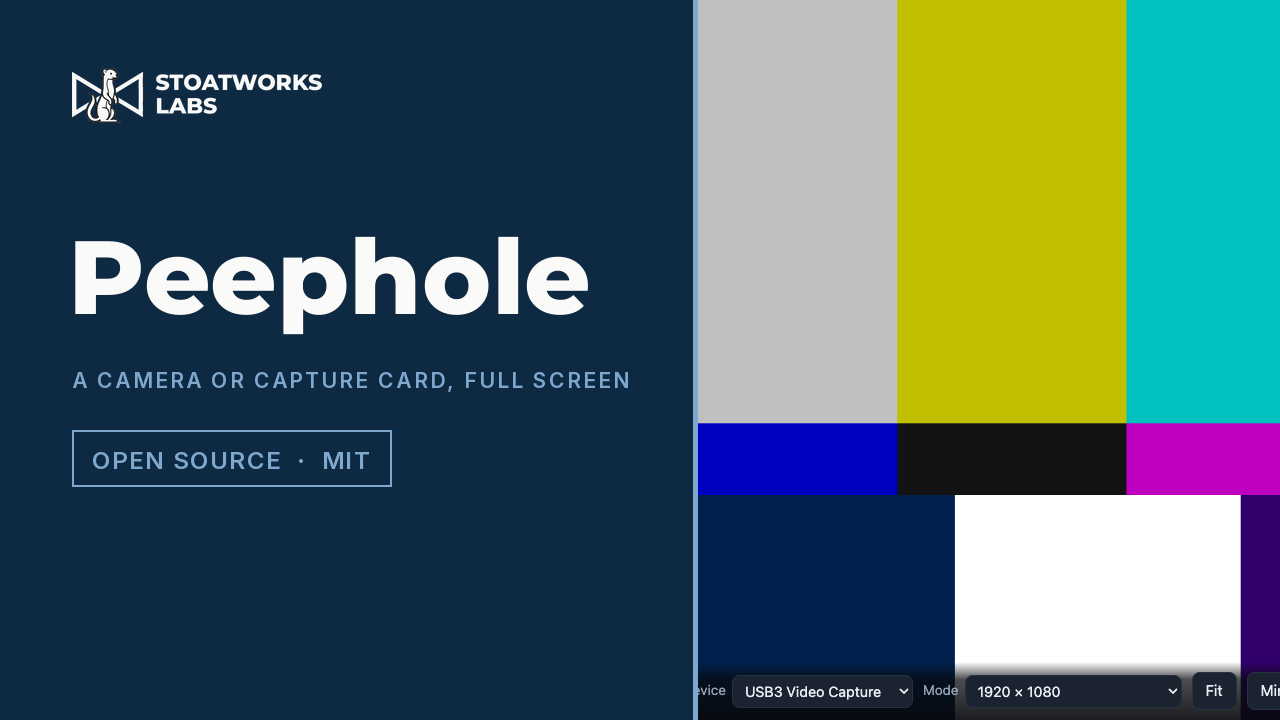
A 1080p source in Fit, with the bar that fades away in full screen still showing: the device by name, the mode asked for, and in the corner what the stream actually settled on. The picture is a generated test pattern fed to the page as the camera.
What it does
01
A capture card at its real resolution
A UVC card advertises a list of modes and the browser picks a cautious one, so a 1080p HDMI card opens at 640 × 480 and just looks soft, like a bad cable. Peephole asks the device what it can do, offers the modes it actually supports, and asks for the one you pick. The size is requested as ideal rather than exact: an exact request a card can't meet throws and loses the picture, while ideal gets as close as the card can and then says how close.
02
It says what you actually got
The readout in the corner is what the stream settled on, not what was asked for. Ask for 1920 × 1080 and get 640 × 480 and it says so beside the number, because the difference between “this card is 1080p” and “you're watching it at VGA” is why you were looking in the first place.
03
Something you'd leave running
The screen is kept awake while a picture is up, and the lock is taken again when you come back to the tab, because browsers drop it whenever the tab is hidden. A stream that ends (card unplugged, another app grabbing it) says so, rather than leaving a frozen last frame that looks like a working picture. Firefox has no wake lock, and there the readout admits the screen may still sleep rather than pretending otherwise.
04
Mirror, rotate, fit or fill, and it remembers
Quarter-turn rotation for a camera on its side, mirror for a presenter facing it, fit or fill for the stage, on keys F, M, R and C. The device and mode are remembered by id and by name, because ids get rotated whenever the site's camera permission is reset and the name is what finds the same card again. In full screen the bar and the cursor fade after a couple of seconds of stillness.
What to check before a show
01
Check the readout, not the menu
It's been used on real shows, which is what the Field proven tag means, and before that everything was driven end to end in a browser against an injected MediaStream (device switching, mode changes, mirror, rotation, fit and fill, and the settings surviving a restart), with unit tests behind the device and view logic. A card can still offer a mode and then deliver something smaller, so before doors pick the mode you want and check the corner says you got it. If a card does something odd, the repository takes issues.
02
The mode list depends on the browser
Reading a device's capabilities is Chromium-only. Safari and Firefox say nothing useful about a card's range, so there the picker offers a standard ladder from 4K down to VGA, and the readout tells you which rung the device actually took. Same picture, just without the list trimmed to what the card can do first.
03
Device names are hidden until you say yes
Browsers return blank labels for every camera until one has been allowed once, so the picker is built after the first stream rather than before, and the page says so up front. If the site's camera permission has since been reset, the remembered id matches nothing, so Peephole falls back to any camera and then switches to the remembered name if it can find it.
Run your own copy
There's no container for Peephole, so the hosted copy is the one to use, or the app you install from its project page.