

PDF Presenter is a minimal, PDF-only presenter: a Now/Next presenter view with a strip of clickable thumbnails, and a chrome-free fullscreen Output window on a second display. It renders locally with pdf.js and integrates with nothing.
Status: field proven — released and run on real events. macOS builds are signed and notarised and open normally. The Windows builds are unsigned, so SmartScreen warns once; see UNSIGNED.md.
There are two builds, and it matters which one you are on — see Desktop or browser.
The presenter view
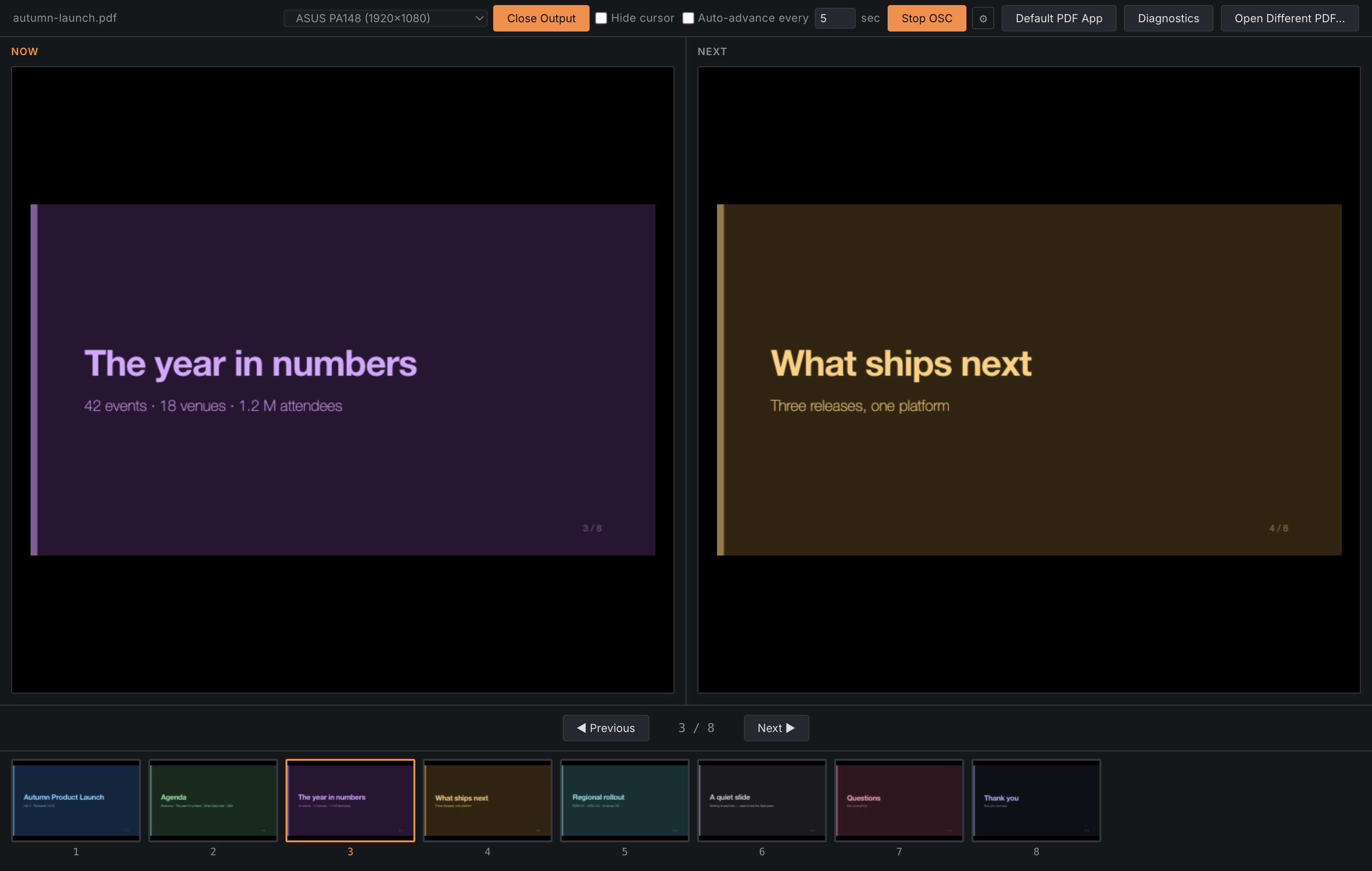
- Now and Next side by side.
- A draggable divider between them. Drag the line separating the two previews to give one of them more of the screen — a dense slide you need to read wants a big Now, a talk you know well mostly wants to see what is coming. Double-click the divider to even them up again. Where you leave it is remembered, so it is still there next time you open the app.
- A thumbnail of every slide below them — click any one to jump straight to it.
- Clicking the “Next” preview itself jumps to it, which is the fastest way to advance with a mouse.
- A Previous/Next transport bar under the strip.

The two windows carry distinct names in the window switcher — “PDF Presenter — Control” and “PDF Presenter — Output (display)” — so you can tell them apart when alt-tabbing under pressure.
Driving it
Keyboard
Left/Right, Up/Down and Page Up/Page Down all move a slide. Space also advances.
The same keys work whether the presenter view or the Output window has focus. That is the detail that makes a presentation clicker keep working on a single-display machine — or after a stray click has moved focus to the Output window mid-show.
Blanking
B for black, W for white — cuts the Output window to solid colour without losing your
place, mirroring PowerPoint’s own shortcuts. Press again to restore.
Internal PDF links
Links authored into the PDF itself — a table of contents, “back to agenda” links exported from PowerPoint, Keynote or Google Slides — become clickable on the Now slide and jump to their target page.
Only internal same-document links are wired up; external URLs are left alone.
Sections
Sections come from the PDF’s own top-level outline/bookmarks. If your deck has none, there are no sections — that is the exporter’s doing, not the app’s.
Timed auto-advance
An optional “advance every N seconds” mode. It stops at the last slide rather than looping.
Slide transitions
One transition, chosen once, applied to every page change. Set it in the presenter view; it is remembered after a restart.
It is deliberately global, not per-slide. A PDF carries no transition metadata, so there is nowhere to store a per-slide choice even if the app wanted to offer one.
| Effect | What happens |
|---|---|
| Cut | No transition — the page changes on the next frame. The default. |
| Fade | The new slide fades up over the old one. |
| Dip to black | Fade down to black, swap, fade back up. |
| Dip to white | The same, through white. |
| Push | Both slides travel; the new one shoves the old one off-screen. |
| Wipe | Both slides stay put; the new one is revealed under a moving edge. |
| Cover | The old slide stays put; the new one slides in on top of it. |
| Uncover | The new slide stays put; the old one slides away to reveal it. |
| Zoom | The new slide scales up from slightly small while fading in. |
Push, wipe, cover and uncover take a direction — four sides, four corners, or Dynamic. The picker is hidden for the other five, which do not read it, but your choice is kept so switching back restores it.
Direction is named for where the new slide comes from, so “From left” always means movement to the right, whichever of the four effects you are on. Uncover is the one to think about for a second: the new slide doesn’t move, so “From left” is the old slide leaving to the right.
Dynamic follows the way you are moving through the deck: advancing plays “From left”, stepping back plays “From right”, so going back visibly undoes the move that went forward. Jumping to a slide from the thumbnail strip counts the same way — an earlier slide is a step back, a later one is an advance.
Duration is global too, in milliseconds — 500 by default, and held between 50 and 5000.
For the two dips it covers both halves, down and back up. Below 50 ms every effect is a
cut, which Cut already does; above 5000 a transition stops being a transition and becomes a
wait.
Only the Output window transitions. The presenter’s Now and Next panes always cut, so the operator is never watching an animation instead of the truth.
Page changes no longer flash
Fixed in 1.5.0, and worth knowing if you run dark decks: every page change used to blink
blank-then-white for a frame, because setting the output canvas’s size clears it and pdf.js
floods the canvas white before painting. Pages now render to an offscreen buffer and the
visible canvas keeps the old slide until the new one is complete. A Cut is now a genuine
cut, with no white frame — on any deck, at any duration, whether or not you use transitions.
Desktop or browser
Everything renders with pdf.js — the desktop app was never doing that part natively — so the whole presenter view also works as a hosted web app with no backend, at pdf-presenter-lite.stoatworks-labs.com.
Your PDF is never uploaded. There is no server and no upload endpoint: the file is read by the page from your own disk, and the deck, the thumbnails and the Output window all stay inside your browser.
The hosted build is called PDF Presenter Lite, and it says so in its own titlebar, so an operator can tell at a glance which one is on screen.
| Desktop app | Browser | |
|---|---|---|
| Presenter view, thumbnails, transport | yes | yes |
| Fullscreen Output window | chosen display, opened fullscreen | pop-up you place, click to fullscreen |
| Keyboard / clicker, incl. from the Output window | yes | yes |
| Screen blanking, laser pointer, hide cursor | yes | yes |
| Internal PDF links, sections, auto-advance | yes | yes |
| OSC control (+ Companion module) | yes | no |
| Watched folder | yes | no |
| Set as default PDF app, wallpaper export | yes | no |
| Diagnostics bundle | yes | no |
The exclusions are all the same limitation: a web page has no UDP socket, no path-addressable filesystem, and no authority over the desktop it runs on. The UI hides those controls in the browser build rather than showing buttons that cannot work.
If you drive the show from a Stream Deck, use the desktop app.
Two things about the browser Output window
- It opens as a pop-up, so allow pop-ups for the site.
- It opens as a normal window, not fullscreen. Only a gesture inside a window can make that window fullscreen, so it shows a “Click for fullscreen” prompt — and that click is unavoidable. Nothing the opener does can stand in for it.
On Chromium it puts itself on your second display, which needs the Window Management permission. Refuse it and the window simply opens where the browser would have put it and you move it yourself. Either way the click is the same.
Remote control (desktop only)
A UDP OSC address space at /pdfpresenter/... covering slide navigation, black/white, Output
open/close, the slide transition, and system enable/disable. Plain UDP rather than a Windows COM
add-in, so it works on every platform the app ships for.
A Companion module ships alongside for driving it from a Stream Deck.
Four OSC features worth knowing:
- The transition —
/pdfpresenter/slideshow/transition/seteffect,/setdirectionand/setdurationchange the look mid-show, and the current setting is reported back on/pdfpresenter/slideshow/transition*. An effect or direction name it doesn’t recognise is ignored on purpose — a typo on a Companion button must not change the look of a live show. A duration outside 50–5000 ms is clamped rather than refused. - Watched folder — off by default. Lets OSC open a specific PDF by filename without a dialog, for a button wall that loads a deck on cue.
- Laser pointer — mirrors the presenter’s mouse position over the Now preview onto the Output window as a glowing dot.
- Set wallpaper — renders the current slide and sets it as the desktop wallpaper on every connected monitor. macOS and Windows are fully covered; Linux is GNOME-only.
Set as Default PDF App
A titlebar button. What it actually does differs by OS, because neither Windows nor macOS lets a third-party app silently seize the default-app slot:
| OS | What happens |
|---|---|
| Windows | Registers the app as a candidate, then opens Settings for you to confirm |
| macOS | Registers with Launch Services; sets the default directly if duti is installed (brew install duti), otherwise shows the real manual steps |
| Linux | Fully automatic, via xdg-mime |
The status message always says what actually happened — never a fake “done” when the real answer is “you still need to confirm it”.
Troubleshooting
| Symptom | Cause |
|---|---|
| Clicker stopped working | It shouldn’t — the keys work from either window. If it did, that is worth reporting. |
| No sections | The PDF has no top-level outline/bookmarks. That is the exporter’s doing. |
| Some links in the deck do nothing | External URLs are deliberately left alone; only same-document links are wired up. |
| Browser: Output window never appeared | Pop-ups are blocked for the site. |
| Browser: Output opened but not fullscreen | Expected — click the prompt. Nothing else can trigger fullscreen. |
| Browser: Output opened on the wrong display | Window Management permission was refused. Move it yourself. |
| Browser: no OSC settings anywhere | Correct — a web page has no UDP socket. Use the desktop app. |
| Auto-advance stopped at the end | By design; it does not loop. |
| Windows warns the app is unidentified | The Windows builds are unsigned — see UNSIGNED.md. macOS builds are notarised and open without a warning. |
| The transition never plays | The default is Cut, which is no transition. Also check you are watching the Output window — the Now/Next panes always cut. |
| The direction picker vanished | Only Push, Wipe, Cover and Uncover read a direction; the other five hide it. Your choice is kept for when you switch back. |
| Dynamic went the wrong way | It reads the page numbers, not the key you pressed: a later page is an advance and comes from the left, an earlier one is a step back and comes from the right. |
| An OSC transition command did nothing | An unrecognised effect or direction name is ignored by design, so a typo can’t alter a live show. Check the spelling against the guide. |
| “Set as default” didn’t finish the job | On Windows you confirm in Settings; on macOS install duti or follow the steps shown. |
| v1.3.1 files are named “pdf-presenter-lite” | That release predates the rename. The hosted build keeps the Lite name for good. |
See also
- UNSIGNED.md — Gatekeeper and SmartScreen
- diagnostics.md — logs and the diagnostics bundle
- README — the full feature list and downloads
- companion-module-pdf-presenter-lite — the Companion module