

caspar-AV is a live-events media server built on CasparCG. You place screens on a show canvas, build cues that change several of them on one frame, and fire them from a trigger grid — all in a browser, with every command it sends visible along the bottom of the window.
Before you rely on this: the protocol work was derived from the CasparCG 2.5.0 source and then verified against a real CasparCG 2.5.0 server (Ubuntu 24.04, headless, Mesa llvmpipe), which caught six genuine bugs — including a command-ordering mistake that broke every
MIXERandCGcommand. But it has never been run on real output hardware or in a live show. Validate it on your own rig first.This codebase was created with AI assistance, directed and reviewed by a human author. Not affiliated with or endorsed by the CasparCG project.
What you need
- CasparCG Server 2.5 reachable over the network. caspar-AV speaks AMCP on TCP 5250 and listens for OSC telemetry over UDP.
- media-scanner on HTTP 8000, if you want the Media and Templates pages to have anything in them.
- A browser for the console. It does not have to be the machine running the daemon.
No CasparCG to hand? Run the fixture instead. It speaks real AMCP framing, real REQ/RES
correlation and pushes real OSC telemetry, and it stands in for media-scanner too — so every page
has something to show. It renders no pictures.
python3 scripts/fake-caspar.pyRunning it
cargo build --release
cd console && npm ci && npm run build && cd ..
./target/release/caspar-avd --host <your-caspar-host> --show myshow.json
Then open http://localhost:8080. There are also prebuilt binaries for macOS, Windows and Linux — see the README’s Download section.
On macOS, take the .dmg or .pkg: those are Developer ID-signed and notarised and open
normally. The .tar.gz payload is not signed — it carries only an ad-hoc signature, so Gatekeeper
refuses it outright. The Windows builds are unsigned and SmartScreen objects once.
UNSIGNED.md covers all of that plus the Defender Firewall prompt.
Against a real server, it is worth checking the protocol assumptions still hold on your build:
python3 scripts/protocol-probe.py --host <your-caspar-host>Why there’s a daemon at all
CasparCG speaks AMCP over raw TCP and pushes state as OSC over UDP. A browser can do neither. So
caspar-avd holds the connection and serves the console over ordinary HTTP.
The console is a passive mirror: it holds no authoritative state, renders the daemon’s snapshot, and sends commands. Two operators on two laptops see the same thing, and a browser that reconnects is immediately correct.
The console
Six pages on one shared frame, chosen from the tab bar along the bottom, with the command log always visible above it — because “did that command actually land?” is the question a show asks most. Each line shows the AMCP that went out and the server’s status code back.
Screens — the show canvas
A screen is a named output: a CasparCG channel and layer, placed as a rectangle on the show canvas. Drag it to move, use the corner handle to resize.
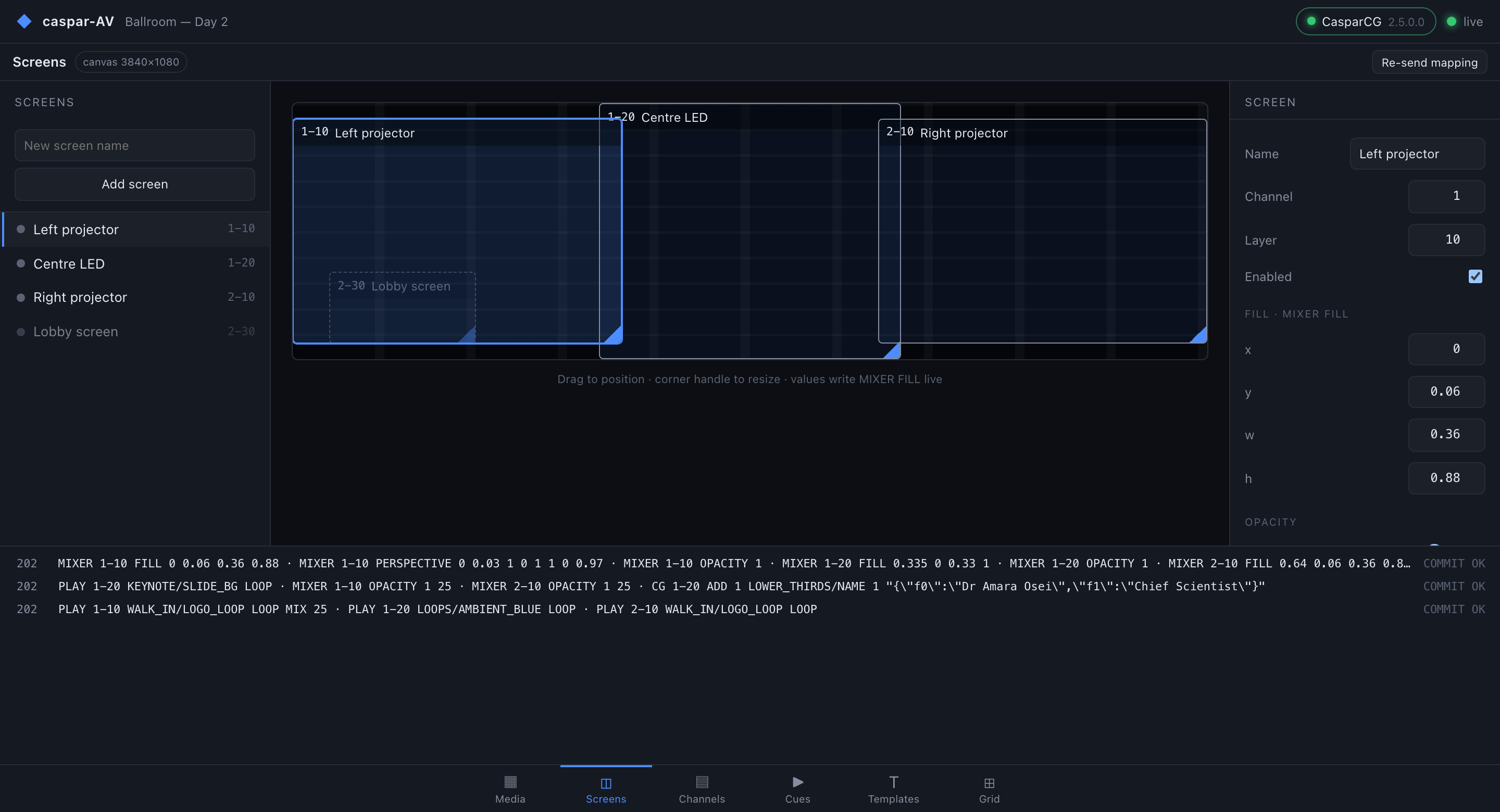
Every screenshot in this guide is a real render of the console against
scripts/fake-caspar.py, captured by scripts/screenshots.py — so the UI is genuine and no
picture is coming out of anything.
The right-hand inspector is where the mapping stops being abstract:
- Channel and Layer are the CasparCG channel/layer the screen owns — the
1–10and2–30labels on the canvas. - x, y, w, h are normalised fill values, and they write
MIXER FILLlive as you drag. - The corner-pin numbers write
MIXER PERSPECTIVE, which is a real four-corner warp — this is what makes projector keystone possible without anything outside CasparCG. - Enabled off leaves the screen defined but unmapped. A greyed screen in the list (like “Lobby screen” above) is one of these.
Re-send mapping pushes the whole mapping again — the thing to reach for after a server restart, when CasparCG has forgotten its mixer state and the console has not.
Media and Channels
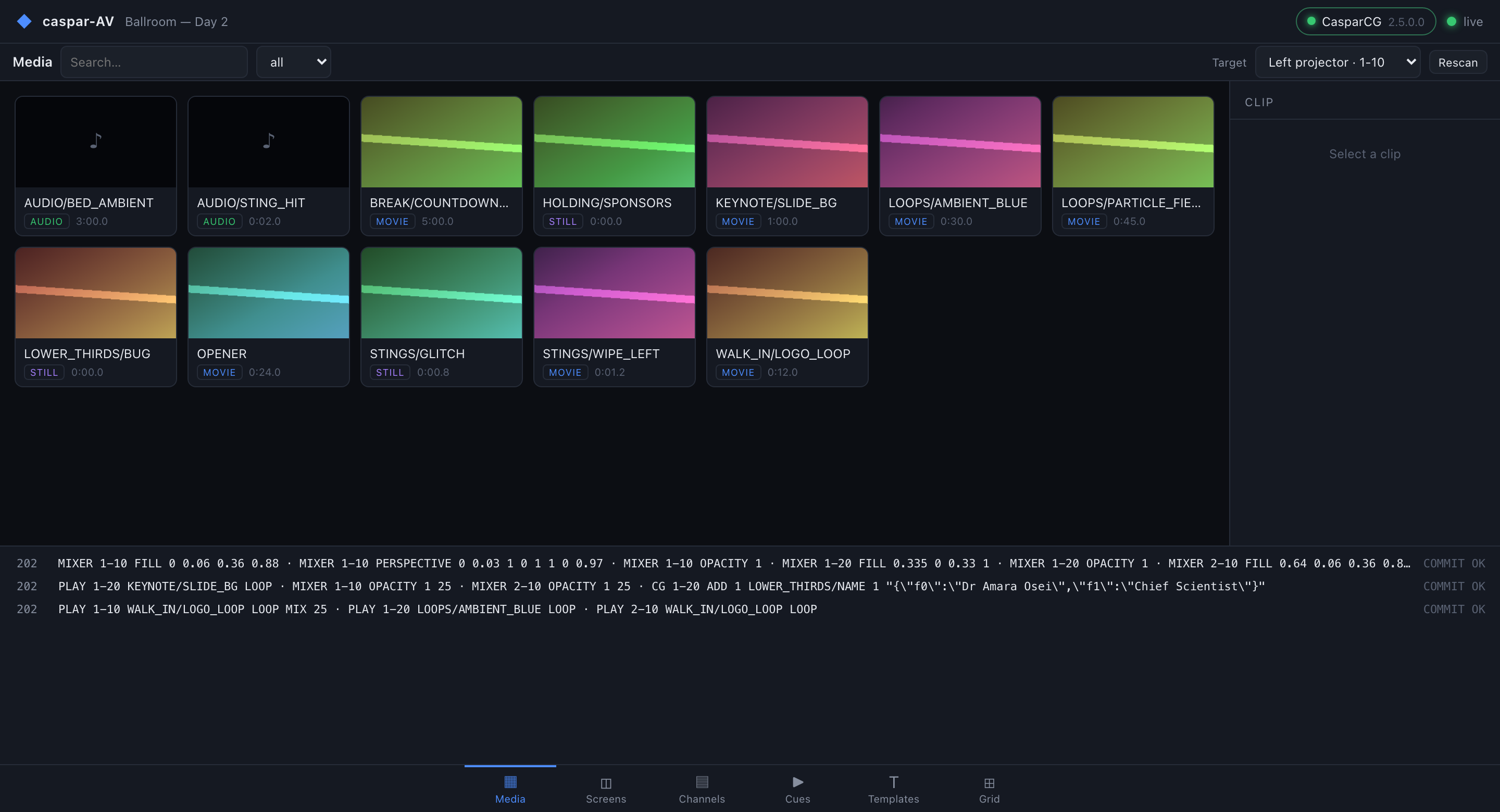
Media is the library from media-scanner, with thumbnails. Double-click a clip to play it onto the target screen.
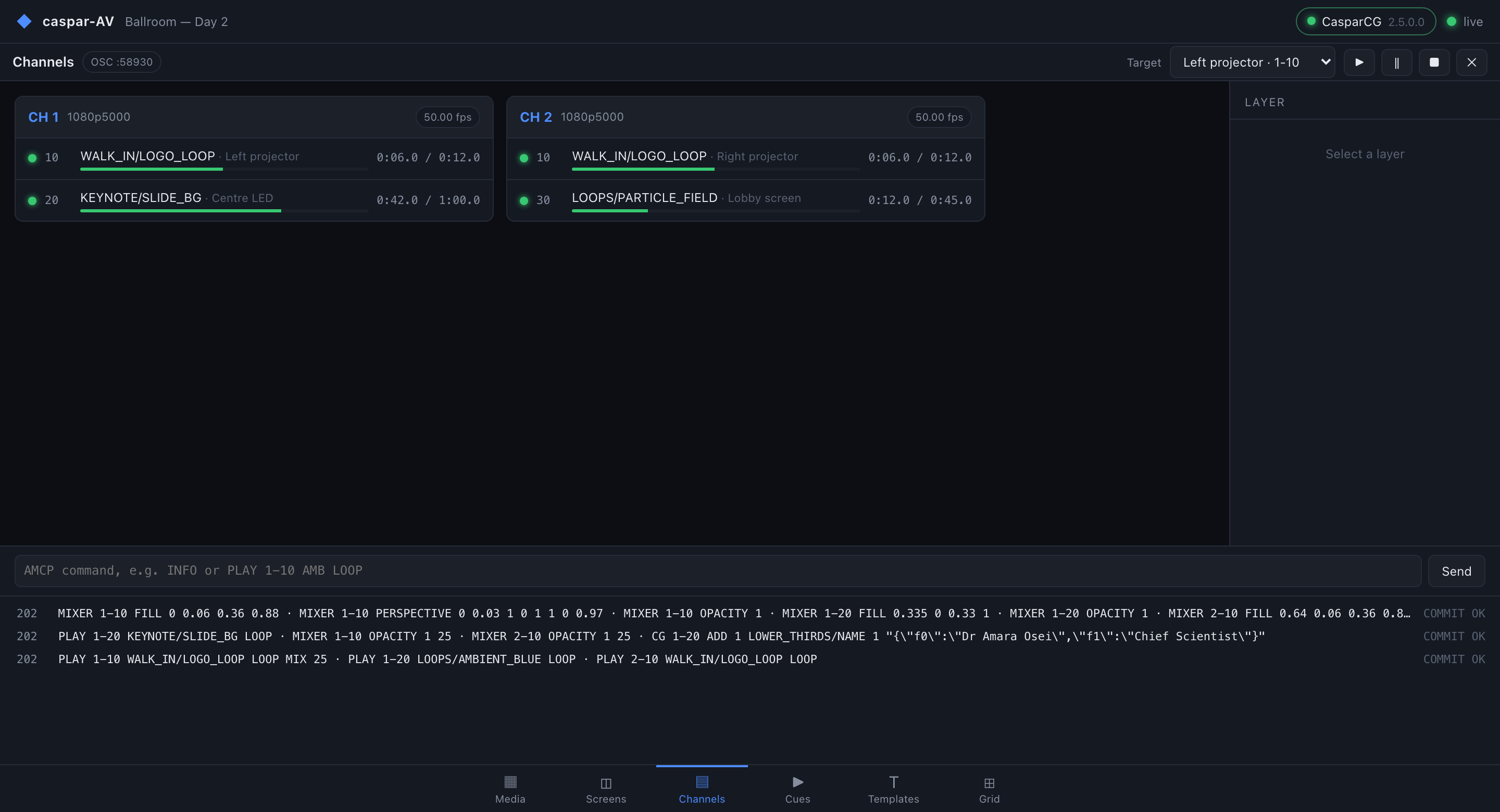
Channels is live state straight from OSC — what is playing on each channel, position and duration — plus a raw AMCP command line for when something is wrong and you need to talk to the server directly.
Cues
A cue is a list of actions across several screens, fired as a single BEGIN/COMMIT batch —
so every screen it touches changes on the same frame, rather than drifting apart by however
long the commands took to send.
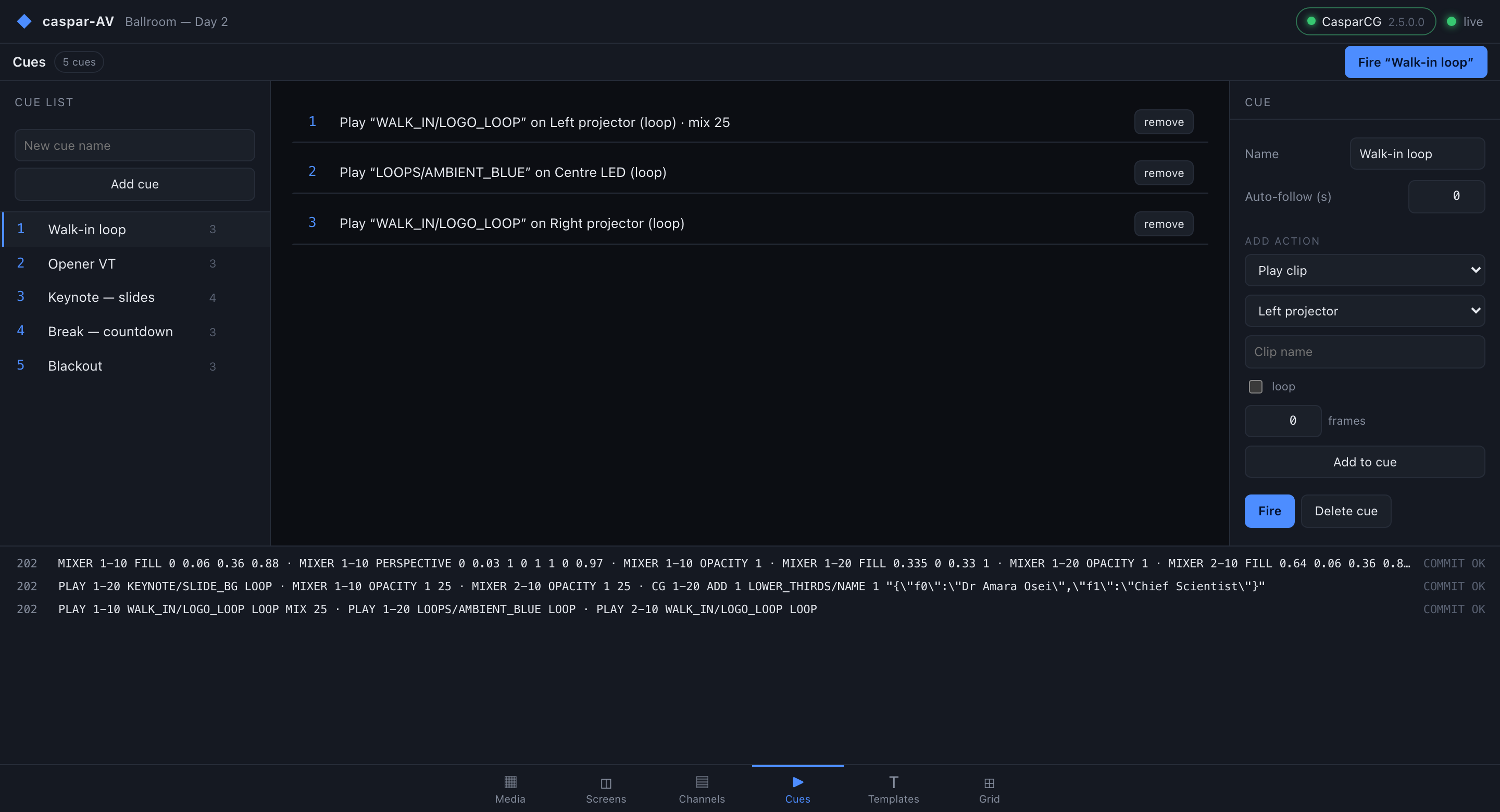
Build a cue by picking an action type (play a clip, set opacity, run a template…), the screen it applies to, and its parameters, then Add to cue. Fire sends the batch.
Auto-follow is stored, not executed. A cue carries an auto-follow time, and the field is there in the inspector, but nothing fires the next cue when it elapses. Treat the number as a note to yourself until that lands.
Templates
CasparCG HTML templates, listed from media-scanner. Where a template publishes a GDD schema, the data form is generated from that schema rather than typed as raw JSON — so a lower-third with name and title fields shows two labelled boxes.
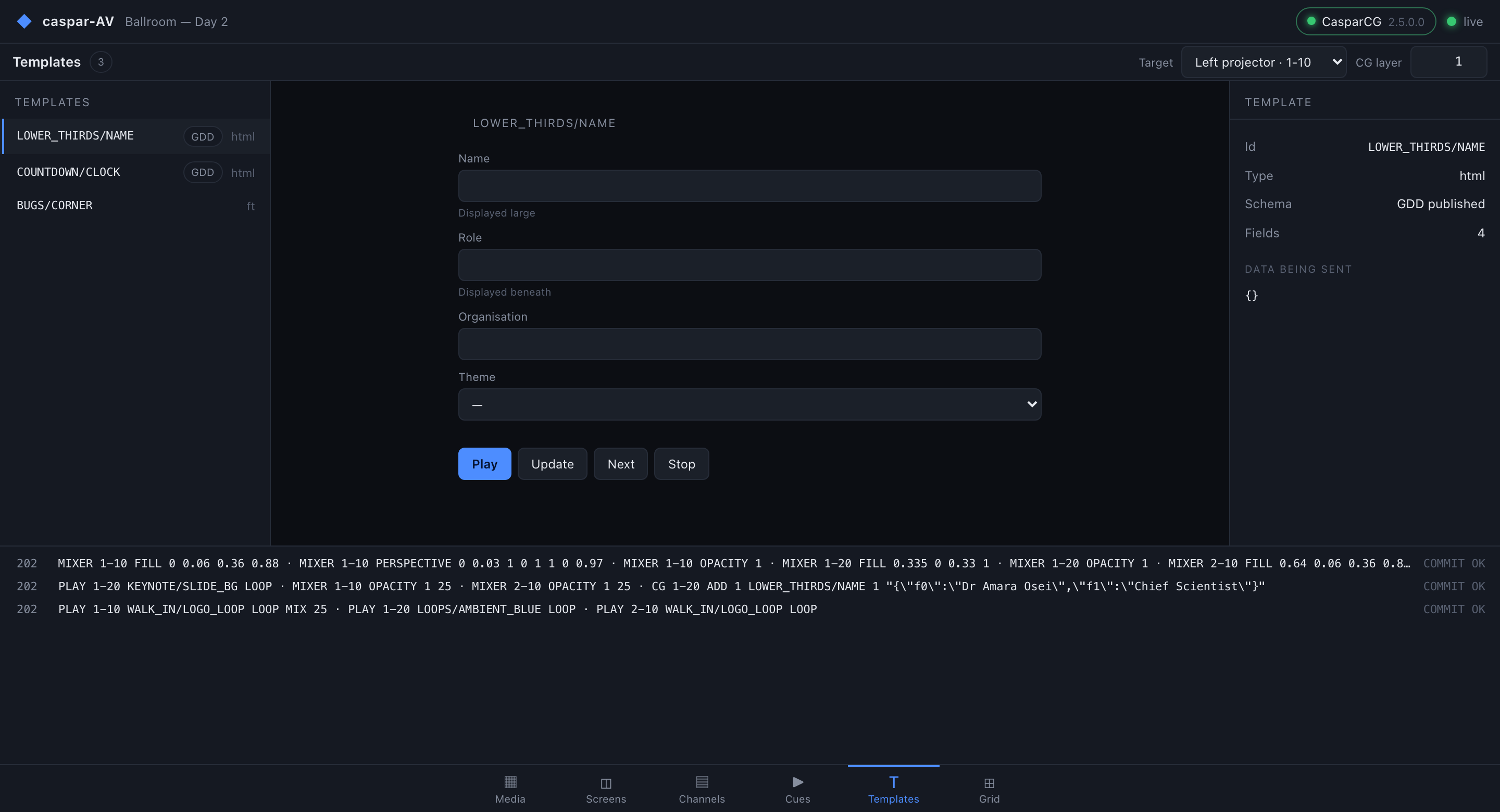
Templates without a GDD schema still work; you supply the data as JSON.
Grid
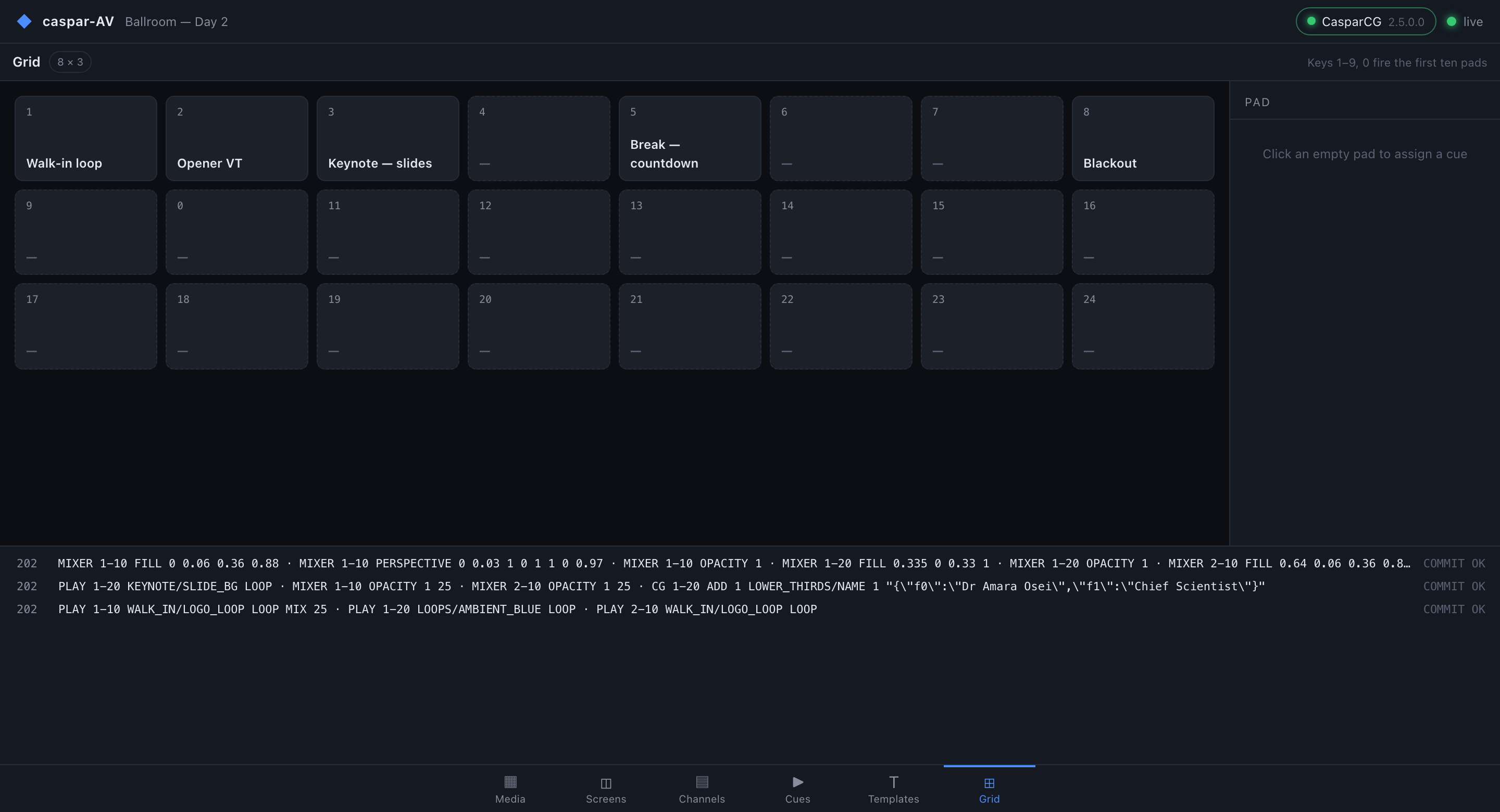
The cues as trigger pads, for when the show is running and you want a target you can hit without reading. Number keys 1–9 and 0 fire the first ten.
What isn’t built
Worth knowing before you plan a show around it:
- No timeline or timecode playback.
- No auto-follow execution — cues carry a follow time, nothing fires it.
- No soft-edge blending UI.
MIXER CLIPand the blend modes exist in CasparCG; caspar-AV doesn’t expose them yet. - No MIDI or OSC control in. You drive it from the console.
- No multi-server rigs — one CasparCG server per daemon.
- No audio metering.
scope.md is the honest, maintained version of this list.
Troubleshooting
| Symptom | Cause |
|---|---|
| Console loads, header says not connected | The daemon can’t reach CasparCG on AMCP 5250. The console talks to the daemon, not the server — a healthy console proves nothing about the server. |
| Screens page is fine, nothing on Media or Templates | media-scanner isn’t reachable on HTTP 8000. It is a separate service from the playout server. |
| Channels page never updates | OSC telemetry isn’t arriving — it is UDP, and a firewall dropping it looks exactly like an idle server. |
| Dragged a screen, picture didn’t move | Check the log for the MIXER FILL line and its status code. If the command went out and returned OK, the mapping is right and the layer is probably empty. |
| Mapping lost after a server restart | CasparCG forgets mixer state; the console doesn’t. Press Re-send mapping. |
| A cue’s screens change at slightly different times | That should not happen — the batch commits on one frame. Check the log for a COMMIT that didn’t return OK. |
| Next cue never fires on its follow time | Auto-follow is stored but not executed. |
| Windows: console won’t load and cues never arrive | The Defender Firewall prompt was denied. See UNSIGNED.md. |
See also
- amcp.md — the protocol as 2.5.0 actually implements it, including where the wiki is wrong
- architecture.md — components, the snapshot contract, the show model, how cues compile
- scope.md — what is built, what is partial, what is not started
- diagnostics.md — logs, crash reports, and the one file to send about a fault
- test-server.md — running a real CasparCG to test against, on a Mac
- README — why this exists, and the download links