

Penumbra is coloured shadows for Resolume Arena and Avenue, as one FFGL mixer, SW Penumbra. Three coloured lamps light a white screen with your clip printed on it, and someone stands between them and the screen. Set it as the blend mode of the layer that holds the person, over the layer that holds the clip.
Nothing is drawn. Each point of the screen shows the sum of the lamps it can see. Red, green and blue lamps throw cyan, magenta and yellow shadows; where two shadows cross only the third lamp’s light is left; black appears only where all three are blocked. Step the person towards the lamps and the shadows part and their edges soften, by similar triangles. Wherever nobody stands, the clip comes back untouched.
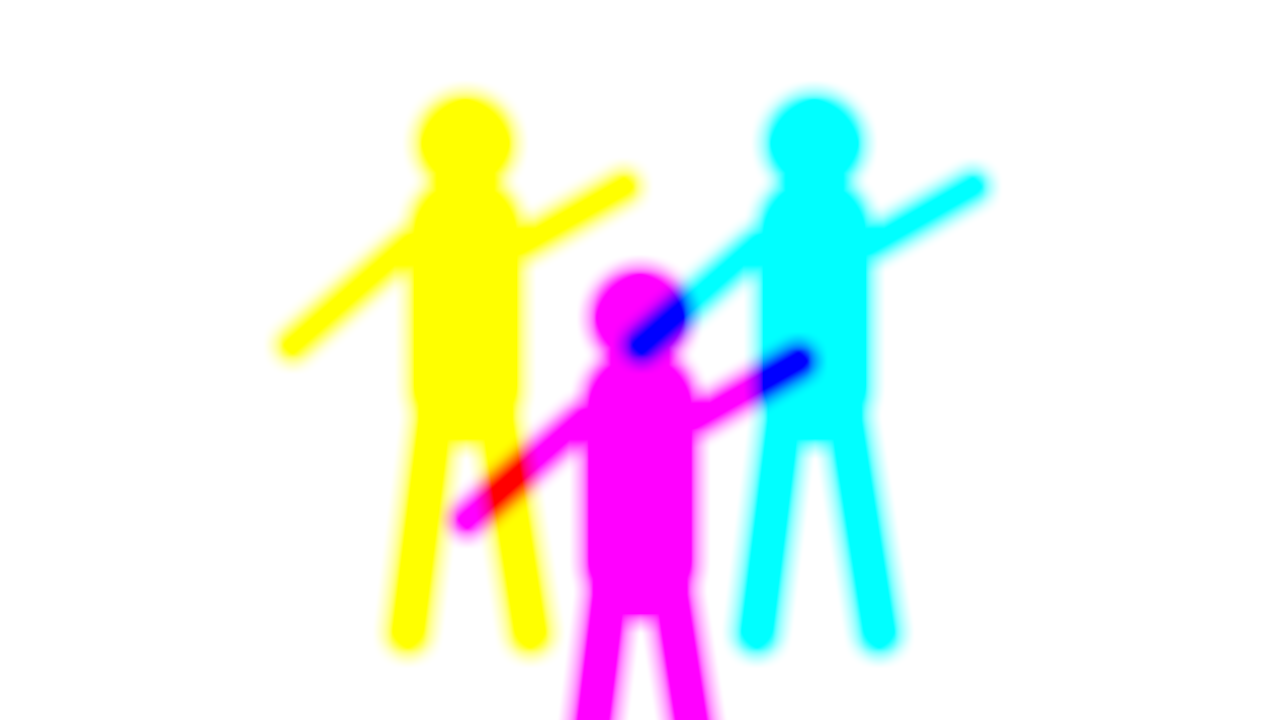
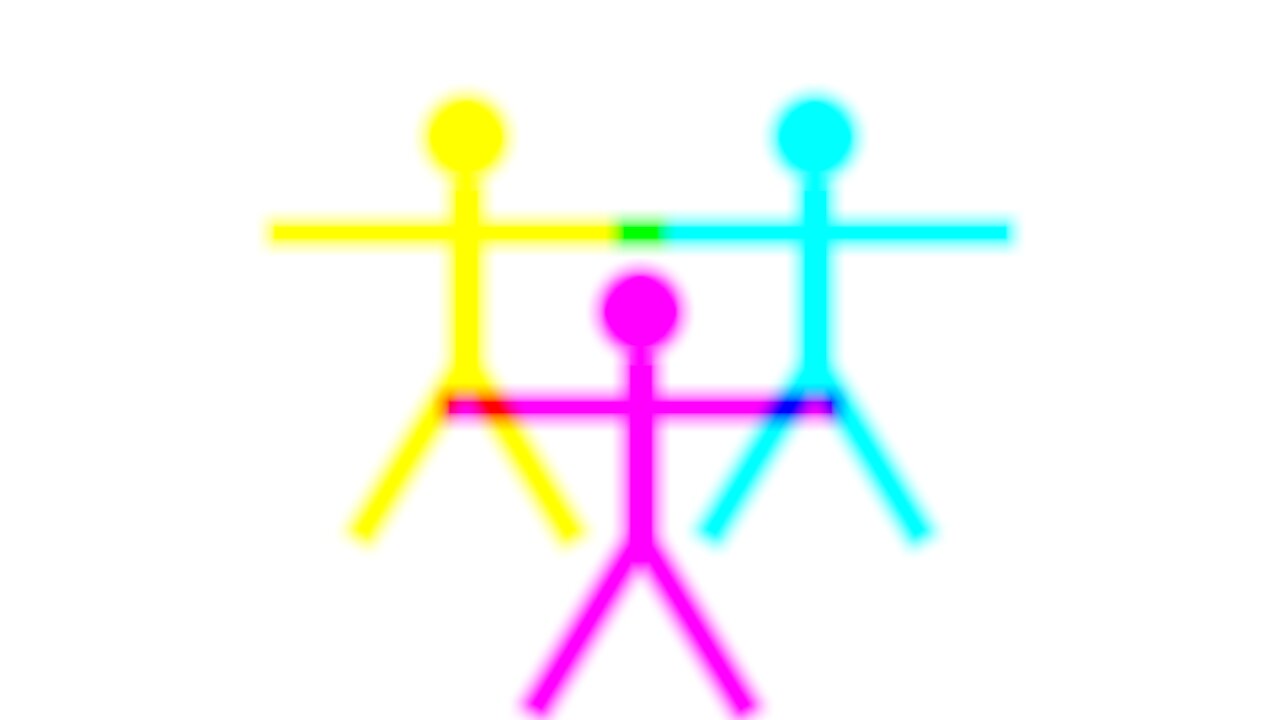
SW Penumbra on its defaults, rendered by the offline harness rather than captured from Resolume: the harness’s stick figure as the person, a plain white screen. The blue lamp’s shadow is yellow, the red lamp’s cyan, the green lamp’s magenta, and where two shadows cross only the third lamp’s light is left.
Before you rely on this: this is v0.1.0, the first release, and early days. The shadows are measured, not just asserted. An offline harness drives the plugin’s own code with two real inputs, at two sizes, on an Apple Silicon Mac’s GPU and again on Apple’s software renderer. With red, green and blue lamps every shadow region comes out exactly cyan, magenta, yellow, red, green, blue or black: not one channel value wrong in 223,096 pixels. Each soft edge is as wide as the similar-triangles formula says, to four decimal places of a pixel. Every pixel agrees with an independent 3D ray cast through the person’s plane to 2 parts in a million. With nothing in the way the clip comes back bit for bit. Thirty-seven deliberately wrong versions of the plugin and twenty-nine one-character sabotages of its code are all caught, and all 25 controls change the picture. In Resolume Arena it has loaded on Windows (7.27.1, software rendering) and on a Mac (7.29.0): it hides only the parameter Arena always hides on a mixer, takes its Opacity from the layer’s fader, and draws its shadows. But that was over a white still with a stick figure in front: it hasn’t met a real performer or a show yet. Try it on a spare layer first, and shout if anything misbehaves.
This codebase was created with AI assistance, directed and reviewed by a human author.
Installing
Download the build for your platform. For macOS there’s a universal .dmg or .zip
(Apple silicon and Intel), Developer ID-signed and notarised so the bundle just loads
(the signing happens on my Mac shortly after each release is published, so a download made
in the first few minutes may need Open from the context menu once), and for Windows an
x64 installer or .zip. Put Penumbra.bundle (macOS) or Penumbra.dll (Windows) in
Resolume’s FFGL folder, then restart Resolume:
macOS    ~/Documents/Resolume Arena/Extra Effects/
Windows  %USERPROFILE%\Documents\Resolume Arena\Extra Effects\
Avenue uses the same layout in its own folder. Yes, it’s Extra Effects for a mixer too:
Resolume has one FFGL plugin folder, and sources, effects and mixers all load from it.
There’s no Extra Mixers.
The Windows installer puts the DLL there for you, per user, with no admin rights needed. It
defaults to Arena’s folder (Avenue’s if only Avenue is installed) and lets you change it.
The Windows builds aren’t code-signed. Plugin files aren’t gated the way .exe files are,
so Resolume loads them as normal; only the installer trips SmartScreen, once: More info
→ Run anyway.
SW Penumbra is a mixer, so it isn’t in the effects browser. It’s in a layer’s Blend Mode list, beside Resolume’s own blend modes (and in the layer’s transition list, which isn’t what it’s for).
It is a mixer, not an effect
An effect gets one picture. A shadow needs two: the thing being lit, and the thing in the way. So SW Penumbra is a blend mode, and it reads the two layers like this:
| Input | In the code | In Resolume | What it is here |
|---|---|---|---|
| Screen | inputTextures[0] (Dest) |
the layer below | The clip, printed on the white screen the lamps light. |
| Person | inputTextures[1] (Src) |
this layer, the one whose Blend Mode is SW Penumbra | Whatever stands in the way. Its alpha (or its brightness) is the silhouette; its colours are never drawn. |
Put the clip on one layer and the person on the layer above it, then set the upper layer’s Blend Mode to SW Penumbra. Handed only one picture, the plugin declines to draw. The two layers don’t have to be the same size; each is read at its own resolution, and the person is stretched over the whole frame.
The person can be anything with alpha: a keyed performer, a clip with a transparent background, text, a person mask from a camera rig. In a room the audience sees the person, not their shadow’s mask, so the person layer’s own colours never reach the picture: only the shadows it throws do.
Start here
- Put a bright clip on layer 1. A dark clip gives dark shadows (see If it looks wrong).
- Put a clip with alpha on layer 2: a performer on a transparent background, or one of Resolume’s demo clips that has alpha (Metalive, Trinity, Ethnik2, OrganicMotions, Galactucity, BattleWeapon_Tank).
- Set layer 2’s Blend Mode to SW Penumbra.
You should see the clip on layer 1 with three coloured shadows of layer 2’s shape on it, one per lamp. Then:
- Distance moves the person between the screen and the lamps. At 0 the person is against the screen and all three shadows are one hard black silhouette. Raise it and the shadows part, each away from its own lamp, and their edges soften.
- The layer’s opacity fader is how solid the person is. Down, the shadows fade out and the clip comes back; up, they’re at full strength.
- View: Light shows the light alone, as if the clip were white. Use it to set the lamps up, then go back to Picture.
What you should see: SW Penumbra on its defaults inside Resolume Arena 7.27.1, from Arena’s own composition snapshot. A white still on layer 2, a red stick figure with alpha on layer 3 with its Blend Mode set to SW Penumbra. The figure’s own colour is never drawn: only the shadows it throws.
How it works, in one paragraph
Three square lamps stand in a plane parallel to the screen, and the person stands in another parallel plane a fraction of the way from the screen to the lamps. With the three planes parallel, the part of a lamp that a screen point can see is a convolution: the lamp’s shape, scaled by similar triangles, slid across the person’s silhouette (Soler and Sillion, SIGGRAPH 98). Each lamp’s shadow is the silhouette moved away from that lamp and blurred by a square the size of the lamp as seen through the person. A square lamp makes the blur a box, and a box over the silhouette is a handful of lookups in a summed-area table held as whole numbers, so every sum is exact. That’s why the shadows cost the same at any Distance and lamp size, and why there’s no quality control.
The Light group
Linear Light (on). The lamps add in linear light and the clip is lit in linear light, as light really adds. Off does the same arithmetic on the gamma-encoded values, which makes the coloured shadows look more saturated and less like light. Resolume hides this control: Arena never shows a mixer’s first parameter, so it sits there on purpose, on, and stays on.
Room Light (0 to 1, default 0). White light nobody blocks, in units of one full white lamp: the floor under every shadow. At 0, a point that can see no lamp is black; with Room Light up it’s never quite black, and every shadow is paler. The person doesn’t block room light.
The Occluder group
Opacity (default 1). How solid the person is: 0 throws no shadow at all, 1 a full one. Resolume puts the layer’s opacity fader on a mixer parameter named Opacity, so in Arena this is the fader on the person’s layer, not a control in the blend mode’s panel. In between, the shadows fade in linear light (not as a crossfade between two pictures).
Occluder (Alpha or Luma, default Alpha). Which part of the layer is the person.
- Alpha: the layer’s transparency. Anything with alpha works as it comes. An opaque layer with Alpha is a wall: it blocks every lamp everywhere and the screen goes dark.
- Luma: the layer’s brightness, for a white-on-black mask that arrives with no alpha (an NDI, Syphon or Spout feed from a camera rig often does). White blocks, black doesn’t.
Distance (0 to 0.9, default 0.35). How far from the screen the person stands, as a fraction of the way to the lamps. 0 is against the screen: three hard black silhouettes on top of each other. As it rises the shadows part (each moves away from its own lamp, so a lamp on the left throws its shadow right) and their edges soften. Both go as Distance/(1 − Distance), slowly at first and fast near the top: at 0.5 the shadows are twice as far apart as at 0.35, at 0.9 seventeen times. How far the lamps are from the screen doesn’t matter; only this fraction does.
The Lamp 1, Lamp 2 and Lamp 3 groups
Each lamp has the same four controls.
The colour (a colour picker; defaults red, green and blue). The lamp’s colour, and its level is its brightness. A lamp set to black is gone, light and shadow both. Two white lamps throw grey shadows; amber, teal and violet make the same pattern in other colours.
X (−2 to 2) and Y (−1 to 1). Where the lamp stands in its plane, in screen heights from the middle of the frame: the frame is one unit tall, so X 0.5 is half a screen height right of centre, and positive Y is up. A lamp’s shadow moves the opposite way from the lamp: move a lamp right and its shadow goes left, move it up and its shadow goes down. The defaults stand the lamps in a triangle, red at (−0.45, −0.15), green at (0, 0.3), blue at (0.45, −0.15), so the three shadows part in three directions.
Size (0 to 0.5 screen heights, default 0.05). The side of the square lamp. A bigger lamp gives softer edges; 0 is a point lamp and a hard-edged shadow. The slider is squared, so the small sizes, where an edge goes from hard to soft, get most of its travel. Size and Distance together set the edge: it’s Size × Distance/(1 − Distance) wide, so at the defaults about a fortieth of the screen’s height.
Thin things lose their shadow first. When an arm is narrower than its shadow’s soft edge, its shadow has no dark core at all, only a pale band. An arm’s shadow goes pale long before the body’s does, as it does in a real room.
The Screen group
Screen (As Is or On White, default As Is). What happens where the clip is transparent.
- As Is: the output’s alpha is the clip’s. A shadow is less light on the screen, not less screen, so where the clip is transparent the output is transparent and no shadow shows there.
- On White: the clip printed on a white screen, then lit. Opaque everywhere; where the clip is transparent, the coloured shadows fall on white. This is the one to use when the clip on layer 1 has alpha, and the classic exhibit look when it’s empty.
On an opaque clip the two are the same picture.
View (Picture or Light, default Picture). Light shows only the light on the screen, as if the clip were white, opaque: the lamps and the shadows with nothing printed under them. For setting up.
Recipes
- The museum exhibit. Screen On White, nothing (or a transparent clip) on layer 1, a performer keyed on layer 2. Red, green and blue lamps as they come. Walk them towards the lamps with Distance.
- Hard shadows. Every lamp’s Size at 0. The edges go sharp and the overlaps read as clean blocks of colour.
- A soft wash. Sizes up to 0.3 and Distance near 0.6: the shadows blur into broad, overlapping colour fields with no black at all.
- One lamp. Set two lamps to black and the third to white: an ordinary soft shadow, with Room Light as the fill.
- Warm and cool. Lamps at amber, teal and violet: the same structure in a different palette.
- Make the person step forward on the beat. Map Distance to a MIDI fader or an envelope: the shadows part and gather as the person seems to move.
Performance
On the Mac it was measured on (an Apple M4 Max, shared with other work), the mean of 30 frames after a warm-up, with the GPU finished both sides: about 0.2 ms a frame at 720p, 0.4 ms at 1080p (2.4 % of a 60 fps frame) and 2.4 ms at 4K, the same at the biggest lamps and the furthest Distance the controls allow. Another GPU will differ, and nothing has been timed inside Resolume.
If it looks wrong
- Nothing happens when I pick SW Penumbra. It needs both layers: something on this layer and something on the layer below. Handed one picture, it declines to draw.
- The whole screen went dark. The person’s layer is opaque and Occluder is on Alpha, so it blocks every lamp everywhere. Use a clip with alpha, or set Occluder to Luma for a white-on-black mask.
- The shadows are faint or barely there. The clip is dark. The lamps multiply the clip, so a nearly black clip stays nearly black under any light, and most of Resolume’s demo clips are dark. Use a brighter clip, or On White where the clip has alpha.
- Only one shadow shows. The clip is strongly coloured. A red screen shows only the red lamp’s shadow, because there’s no green or blue in it for the other lamps’ shadows to take away.
- A shadow has gone. It’s been thrown off the frame: with Distance high, a lamp far from the middle throws its shadow a long way. Bring Distance down or the lamp in.
- There’s no black. Black only appears where all three shadows overlap. Bring Distance down so they overlap more, or use a bigger person.
- The fader doesn’t do anything. Opacity is the layer’s opacity fader in Resolume, not a control in the blend mode’s panel.
- There’s no Linear Light control. Resolume hides a mixer’s first parameter. It’s on, as it should be.
- As a transition, it ends with a jump. SW Penumbra is in the layer’s transition list too. There it brings the new clip in as a strengthening shadow on the old one, and Resolume stops the transition just short of full Opacity (0.987 in a test) and then shows the new clip on its own. It’s meant as a blend mode.
Known limits
- Tried in Resolume on test pictures only. It loads and draws in Resolume Arena 7.27.1 (Windows, software rendering) and 7.29.0 (Mac), but nobody has yet stood a real performer or a camera mask in front of it, run it through a show, or timed it inside Resolume.
- Each lamp lights the screen evenly. There’s no fall-off with distance and no angle term: only which part of each lamp a point can see changes across the screen. That’s a fair approximation for a lamp that’s small next to its distance, and it’s what keeps the clip exactly as it was wherever nothing is in the way.
- Square lamps only, square to the screen. A round lamp’s edge would be the same width with a different profile, and the table can’t do a disc at the same cost.
- The person is flat, at one distance. No depth per pixel: a hand held out towards the lamps throws the same shadow as one held against the body. A mixer has only two inputs, and both are spoken for. Distance is the one control for stepping towards the lamps.
- Shadows on dark clips are faint. The lamps light the clip, so they can’t make a dark clip bright. There’s no brightness boost on purpose: it wouldn’t be light.
- Room Light is a flat floor: the person doesn’t block it.
- The person’s mask is read at 8 bits, as 255 levels (fewer only above 4096×2160).
- Whether a camera rig’s person mask arrives with alpha or as white on black is up to that rig. The default reads alpha; set Occluder to Luma for a mask without it.
- Other GPUs. It has run on one Apple GPU and Apple’s software renderer only.
About
The last group, About, has the plugin’s name, version, licence and maker, and buttons that open this user guide, the project page, the source on GitHub and the support page in your browser.
Links
- Project page: stoatworks-labs.com/software/penumbra
- Source: github.com/stoatworks-labs/penumbra
- User guide: stoatworks-labs.com/software/penumbra/guide
Reporting something
Something wrong, odd or missing? Open an issue at github.com/stoatworks-labs/penumbra/issues. The plugin keeps a short log of what the host did (the first frame’s input sizes, the table’s size, any guard that refused a frame, and the first few hundred changes of Opacity), which helps a lot:
macOS    ~/Library/Logs/penumbra/
Windows  %LOCALAPPDATA%\penumbra\logs\