

Bulk-build labelled source thumbnails for Barco Eventmaster and Analog Way RCS2. Type a list of sources, pick an icon, a size and a colour for each, and download the lot as a ZIP with one image per source, named after it.
Runs entirely in the browser. Nothing is uploaded; the batch you build is saved in the browser’s local storage, so it survives closing the tab.
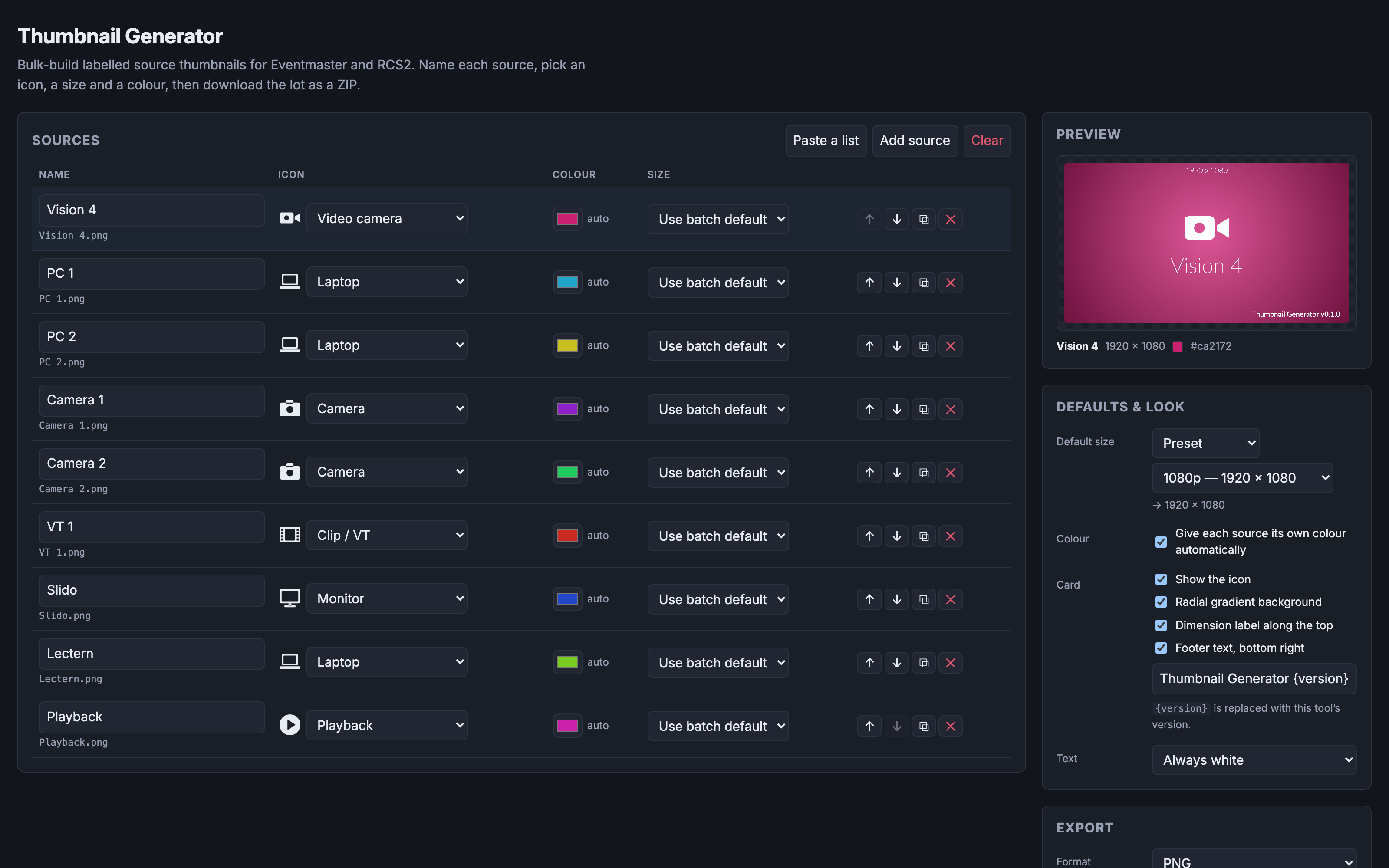
Before you rely on this: the cards are built and checked in a browser with 128 tests behind them — they render at their true raster, long names shrink and then wrap to two lines inside the margins, odd rasters such as 2056×1329 lay out correctly, and the PNG encoder produces a valid file whose header matches the canvas.
No output has ever been loaded onto an Eventmaster or a LiveCore frame. PNG is a reasonable assumption about what those accept rather than a measurement, and the size presets are generic rather than taken from either vendor’s documentation.
This codebase was created with AI assistance, directed and reviewed by a human author.
What a card looks like
A radial gradient in the source’s colour, a white knockout icon, and the source name below it.
Optionally a dimension label along the top (1920 x 1080) and a footer bottom-right — both on by
default and both switchable.
Using it
- Add sources. One at a time, or Paste a list and drop in a column straight out of a patch sheet — newline or comma separated.
- Set the icon per source: camera, video camera, projector, monitor, laptop, desktop, tablet, phone, USB stick, drive, playback, clip, slides, microphone, speaker, server, network, web, or none.
- Set the size. 1080p by default; per source you can override with a preset, an exact pixel size, or an aspect ratio plus a long edge.
- Set the colour, or leave Give each source its own colour on and let it spread them around the hue wheel.
- Generate. You get a ZIP of images plus a
manifest.csvlisting which file went with which source, at what size and colour.
Importing a list
Three ways in: a CSV file, a paste (copying straight out of a spreadsheet arrives as tab-separated and is handled), or a published Google Sheet.
Four columns, of which only name is required. A blank cell means “use the batch default”.
| Column | Accepts |
|---|---|
name |
Anything. Also matches a heading called source, label, input, title. |
icon |
An icon name (camera, Video camera, usb) or a synonym — cam, PC, MacBook, screen, VT, PowerPoint, SSD. |
colour |
#1f6fd0, 1f6fd0, #f00, or a name: red, amber, teal, navy, magenta and the rest. |
size |
1920x1080, a ratio 16:9, a ratio with a long edge 16:9@2560, or a preset 1080p / 4K / 720p. |
Headings are matched loosely — Source Name, source_name and SOURCE NAME all work, in any
column order. If no heading is recognised the columns are read in order as name, icon, colour,
size, which is what a bare list pasted from one column actually is.
Nothing is applied until you have seen what parsed. The preview says how many sources it found, which heading it took each column from, which headings it ignored, and every value it could not understand — with the spreadsheet row number, so you can go and fix it. Values it cannot read fall back to the batch default and are listed; they are never silently guessed at.
On the Google Sheet route: the plumbing is verified from the deployed site, but a genuinely published sheet returning its rows has not been tested — that needs a real Google account. If it misbehaves, the file and paste routes need no network at all.
Filenames
The label on the card and the name of the file are the same string.
Names are made unique before packing — two sources called “Laptop” become Laptop.png and
Laptop-2.png, because a ZIP with duplicate names extracts to one file and silently loses a
card.
Safe filenames (in Export) folds everything to ASCII with underscores for spaces. Use it when the files are going straight onto a frame rather than onto a computer.
Formats, and the size trap
PNG by default; JPEG with a quality slider is also there.
A gradient card is about 25× bigger as a PNG than as a JPEG — a 2056×1329 card measures ~2.5 MB against ~93 KB. Browsers dither smooth gradients, which leaves PNG’s compression nothing to work with. A 48-source batch of PNGs is around 100 MB.
The export tells you the archive size before you commit to it. Turning the gradient off brings PNG back down to a few kilobytes — which is the right answer when the frame only needs a legible label.
One thing worth knowing
Output is not byte-identical across machines, because the card uses a system font stack rather than a bundled one. Immaterial for labels like “PC 2”; worth knowing if you ever diff two machines’ output.
If something is wrong
| Symptom | Cause |
|---|---|
| A source is missing from the ZIP | It should not be — duplicate names are made unique before packing. Check the manifest. |
| The archive is enormous | Gradient cards as PNG. Turn the gradient off, or export JPEG. |
| A value was ignored on import | The preview lists every one it could not read, with its row number. Nothing is guessed. |
| The Google Sheet import returns nothing | That route is the least tested. Use the file or paste route. |
| The frame will not take the file | PNG is an assumption here, not a measurement. |